Viewing and Exporting Usage Data
Enterprise Plans only
If you're the owner of the overall Sauce Labs account, you can view usage information for all accounts on the Organization Management page. If you're an individual user, you can view your usage information on the My Account page.
Additional Usage charts and export options are available in Usage report under Insights.
Usage Data - USERS Tab
The USERS tab on the Organization Management page provides the following information for each user:
| Column | Description |
|---|---|
| Last VM Test | The date and time of the last VM test run by the user. |
| VM Tests (last 30 days) | The total number of tests run by that user in the previous 30 days. |

Usage Data - TEAMS Tab
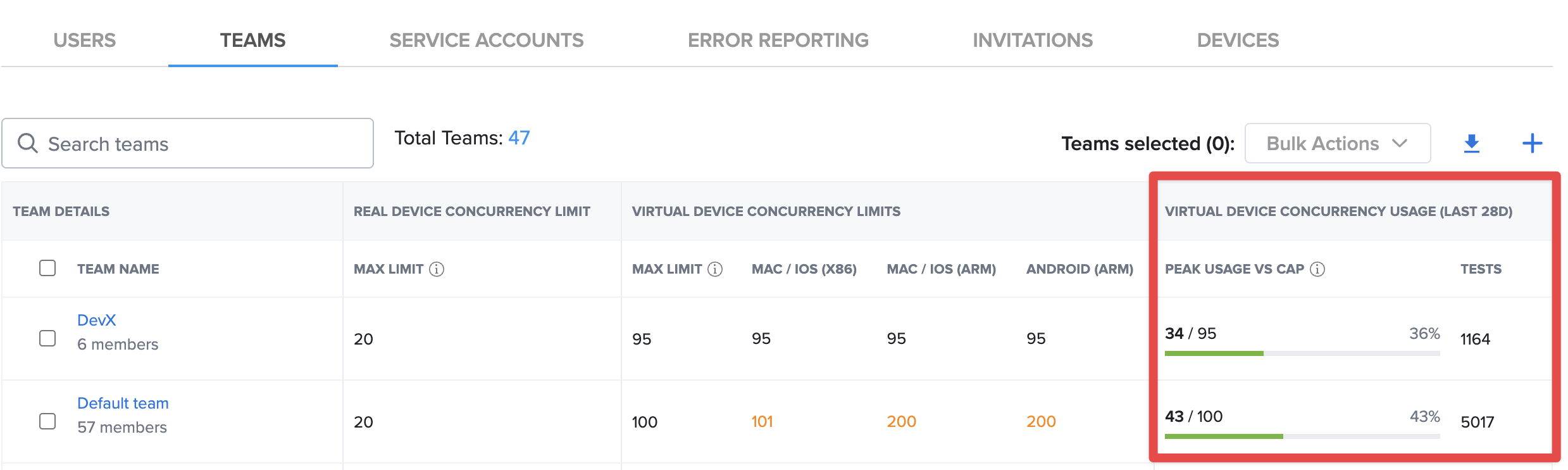
The TEAMS tab on the Organization Management page provides the following information for each team:
| Column group | Column | Description |
|---|---|---|
| Team Details | Team Name | The team name, with the number of team members underneath. |
| Real Device Concurrency Limit | Max Limit | The team's limit for public real device tests. |
| Virtual Device Concurrency Limits | Max Limit | The team's Total Concurrency limit for all virtual device tests. |
| Mac / iOS (x86), Mac / iOS (ARM), Android (ARM) | The team's platform limits, which sit inside its Total Concurrency. | |
| Virtual Device Concurrency Usage (Last 28D) | Peak Usage vs Cap | The highest number of virtual device tests the team ran at the same time in the previous 28 days, compared with its Max Limit, as a number, a percentage, and a bar. |
| Tests | The number of tests the team ran in the previous 28 days. |
How values appear in the table:
- A value with a default label means the team has no limit of its own for that platform, so the organization limit applies.
- A value shown in orange is a platform limit that is higher than the team's Max Limit, so it has no effect. Hover over the value for details.
To change a team's limits, see Setting Team Concurrency Limits. For details on how team and platform limits interact, see How Concurrency Limits Work.
USAGE Widget
The USAGE widget provides a quick look at the device usage, by test session, for your team and organization.

Minutes Used vs. Concurrency
One way to tell if you're getting the most efficient use out of your Sauce Labs plan is to compare the minutes used with the number of concurrent tests run during the same period. If the ratio of minutes to concurrency is low, for example, 2:1 (100 minutes:50 concurrent tests), then you are using a lot of minutes to run very few tests. You should redesign your tests to take greater advantage of concurrency. See Scaling Tests and Managing Concurrency for more information.
Exporting Usage Data
You can export a .csv file that contains the usage information for selected accounts.
-
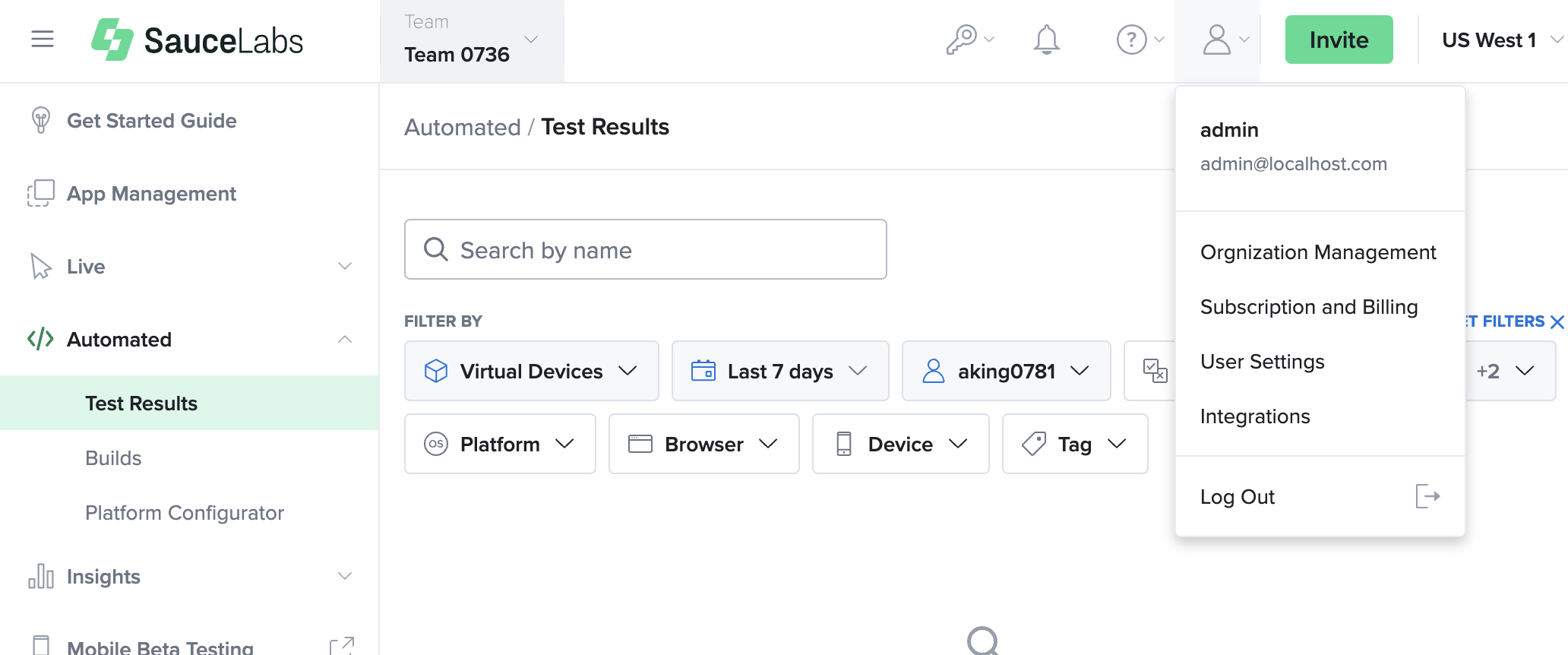
In Sauce Labs, click ACCOUNT and then click Organization Management.
-
On the USERS tab, select the checkboxes of the users whose usage information you want to export.
-
Next to USERS SELECTED, click the download button.
