AI Test Authoring in Your IDE
Write a test by describing it in plain English. You type what you want to test, the AI runs it on a live Sauce Labs session, shows you each step as it happens, and gives you back test code you can put straight into your project.
The IDE panel is a second client of the same Sauce AI for Test Authoring platform that powers the web UI at app.saucelabs.com. The web UI is the live-authoring surface; the IDE panel is the code-in-repo surface for engineers who want generated tests in their own repository and pipeline.
Prerequisites
Before using AI Test Authoring, ensure that:
- You are signed in to the Sauce Labs IDE Plugin. See Installation and Sign In.
- Your account has the Sauce AI for Test Authoring entitlement.
AI Test Authoring is available as a paid add-on for Enterprise accounts. If your account does not have access, the plugin displays a message indicating that the feature is unavailable.
Create Your First Test
Follow these steps to generate your first AI-powered test.
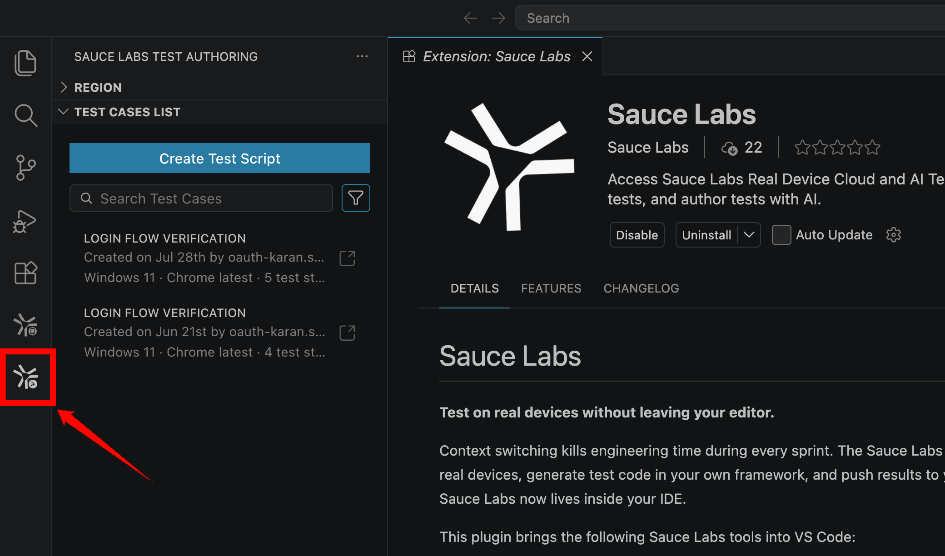
Step 1: In the Activity Bar, click the Sauce Labs Test Authoring icon. The Test Authoring view opens and displays your saved test cases, along with the Create Test Script action.
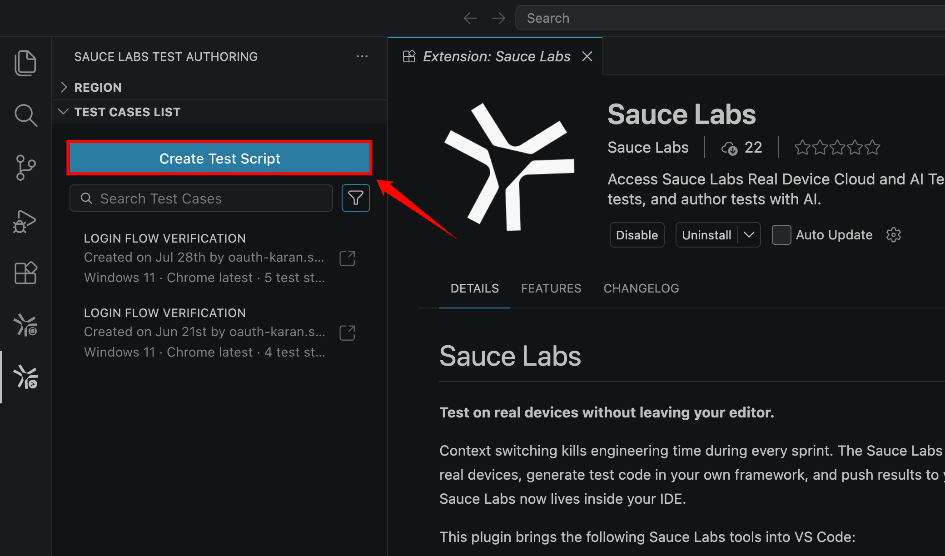
Step 2: Click Create Test Script. A new authoring editor opens in a separate tab where you can configure and generate your test.
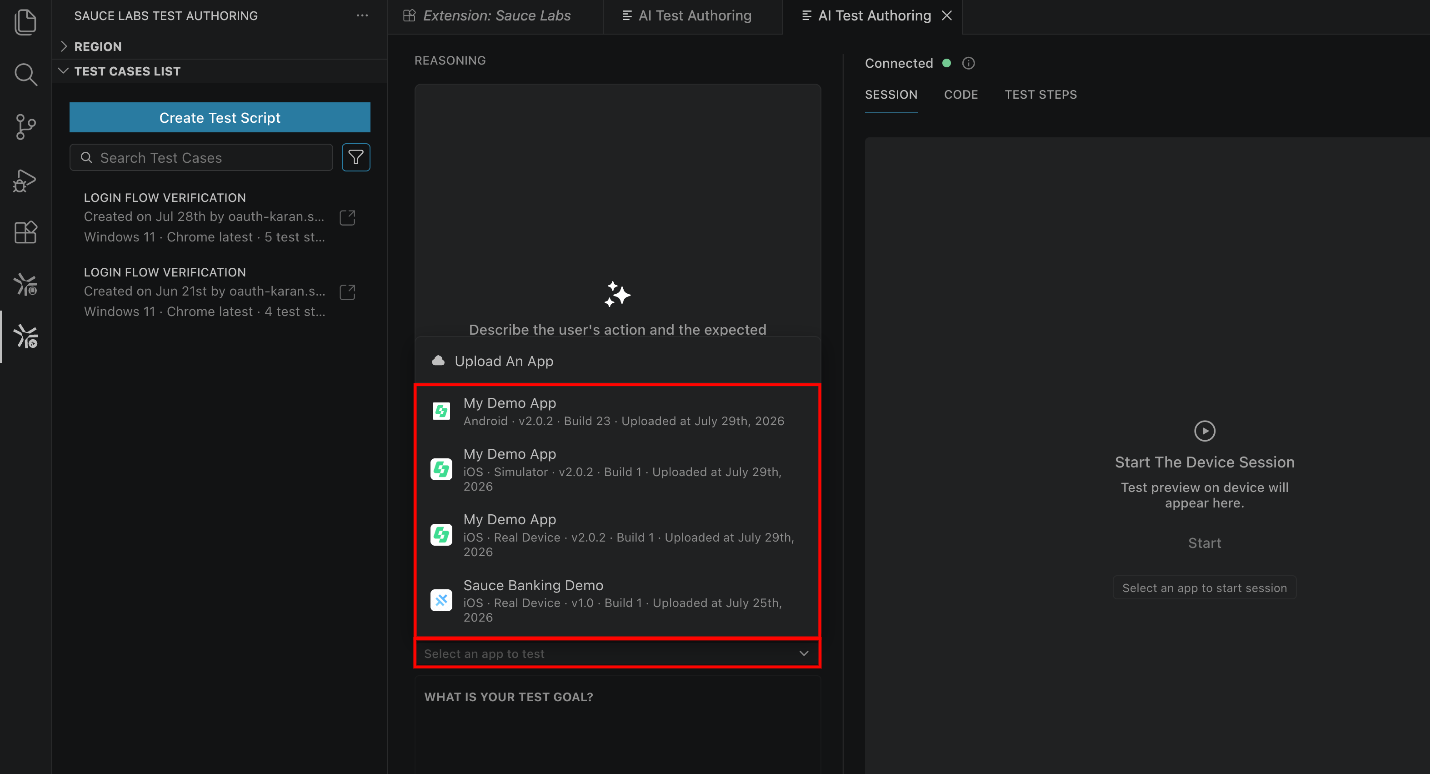
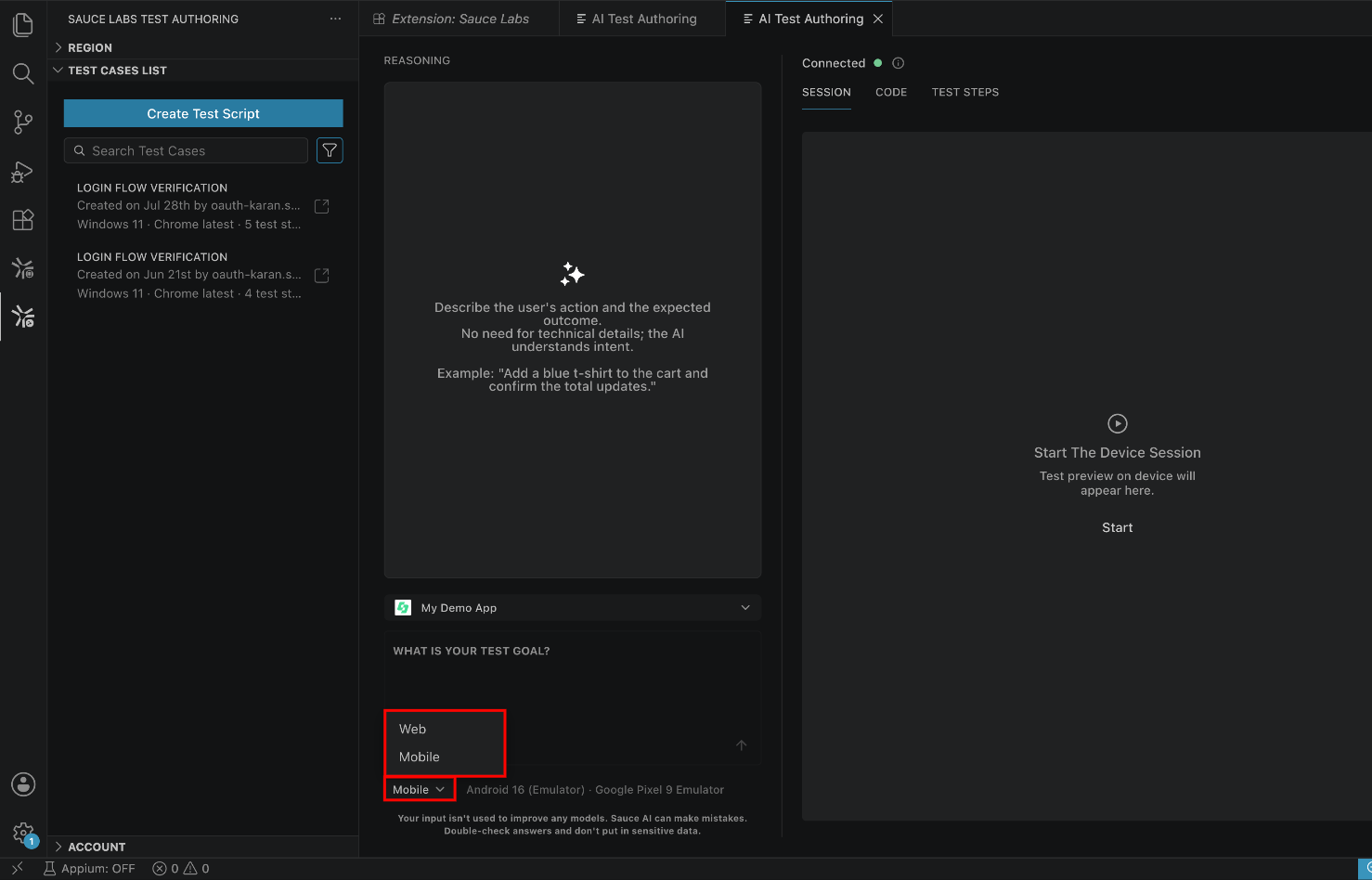
Step 3: Select the environment where you want to run the test.
Choose a Test Target
Before generating a test, select the target you want Sauce AI to interact with. The available options depend on whether you are testing a Web application or a Mobile application.
Configure a Web Test Target
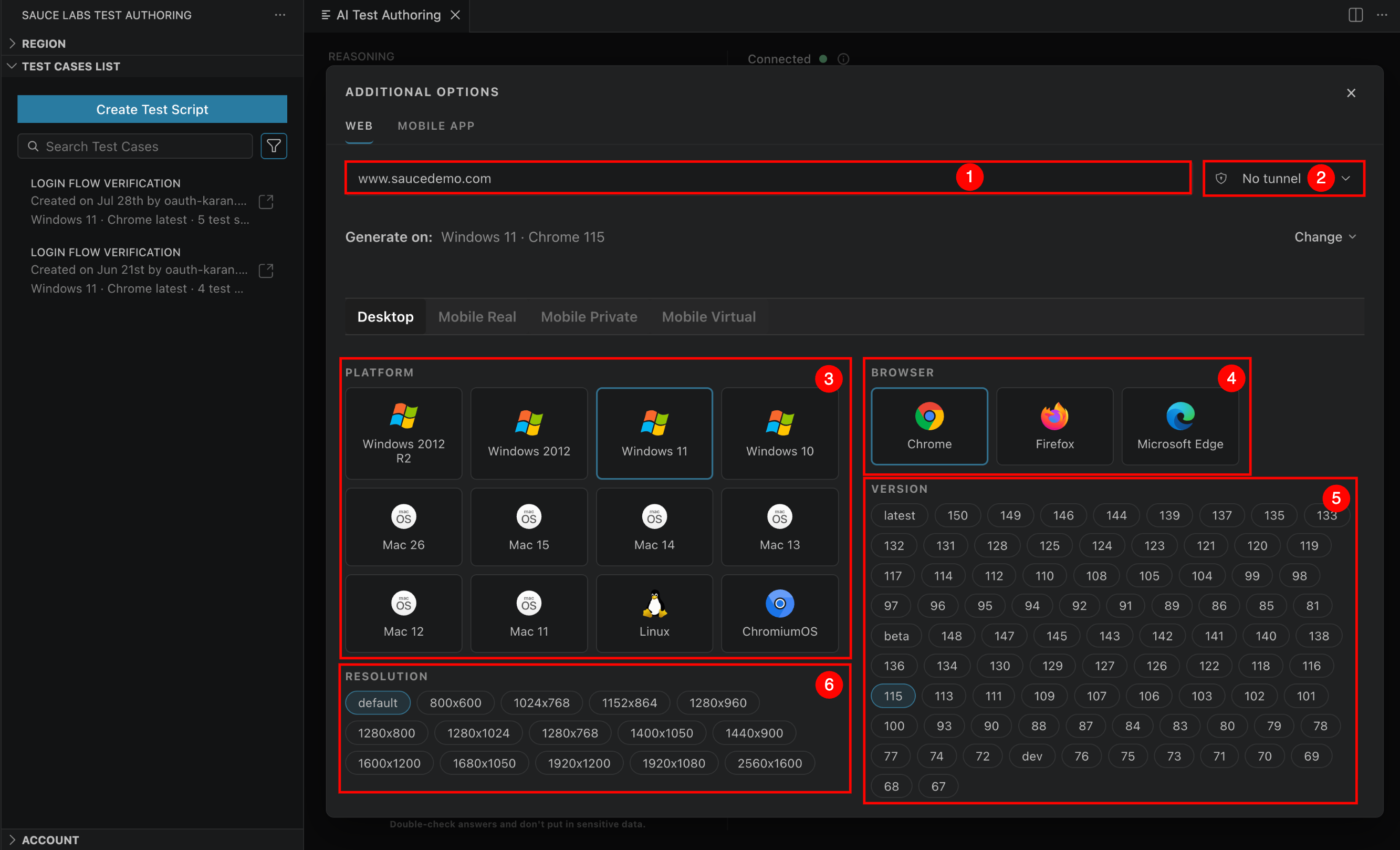
To generate a test for a web application, select the Web tab and provide the application URL. Then configure the environment where the test will run.
The following table describes each available configuration option.
| Ref. | Configuration | Description |
|---|---|---|
| 1 | URL | Enter the URL of the website or web application you want Sauce AI to test. Sauce AI opens this URL when the test session starts and performs the actions described in your prompt. |
| 2 | Tunnel | If your application is hosted behind a firewall or is not publicly accessible, select a Sauce Connect tunnel from the dropdown. Sauce Connect creates a secure connection between Sauce Labs and your private network, allowing the AI to access internal applications. If your application is publicly accessible, leave No tunnel selected. |
| 3 | Platform | Select the operating system where the browser session will run. Available platforms include Windows, macOS, Linux, and ChromiumOS. The selected platform determines the operating system used during test generation and execution. |
| 4 | Browser | Select the browser in which the test will run. Supported browsers include Chrome, Firefox, and Microsoft Edge. Choose the browser that matches your application's testing requirements. |
| 5 | Browser Version | Select the browser version for the test session. You can choose latest to always use the most recent supported version or select a specific browser version to validate compatibility with a particular release. |
| 6 | Resolution | (Optional) Select the browser window resolution for the test session. Screen resolution can affect responsive layouts and element positioning. If no resolution is selected, Sauce Labs uses the default resolution. |
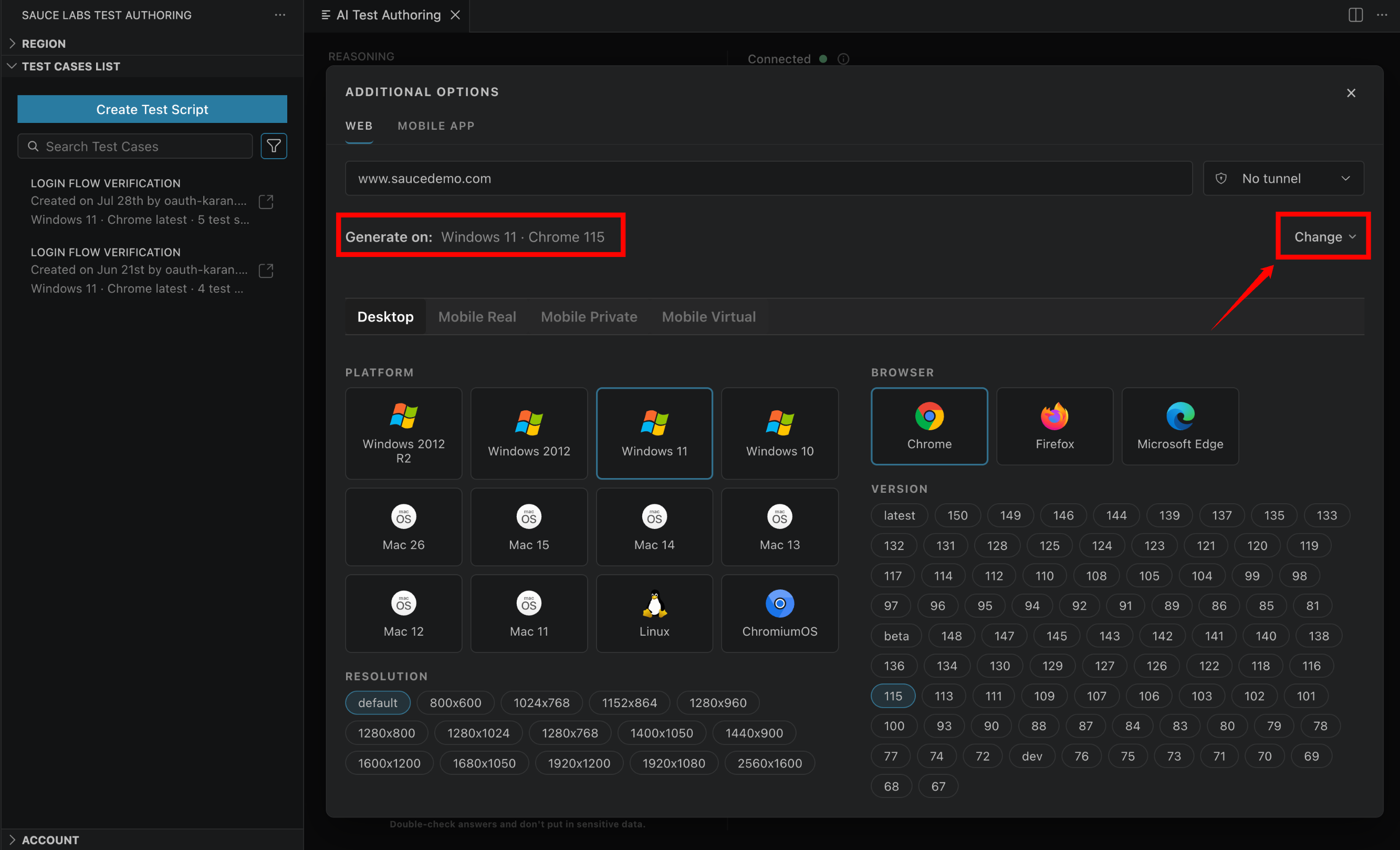
After selecting these options, the Generate on section displays the current execution environment. To modify any of the selected options before generating the test, click Change.
Configure a Mobile App Test Target
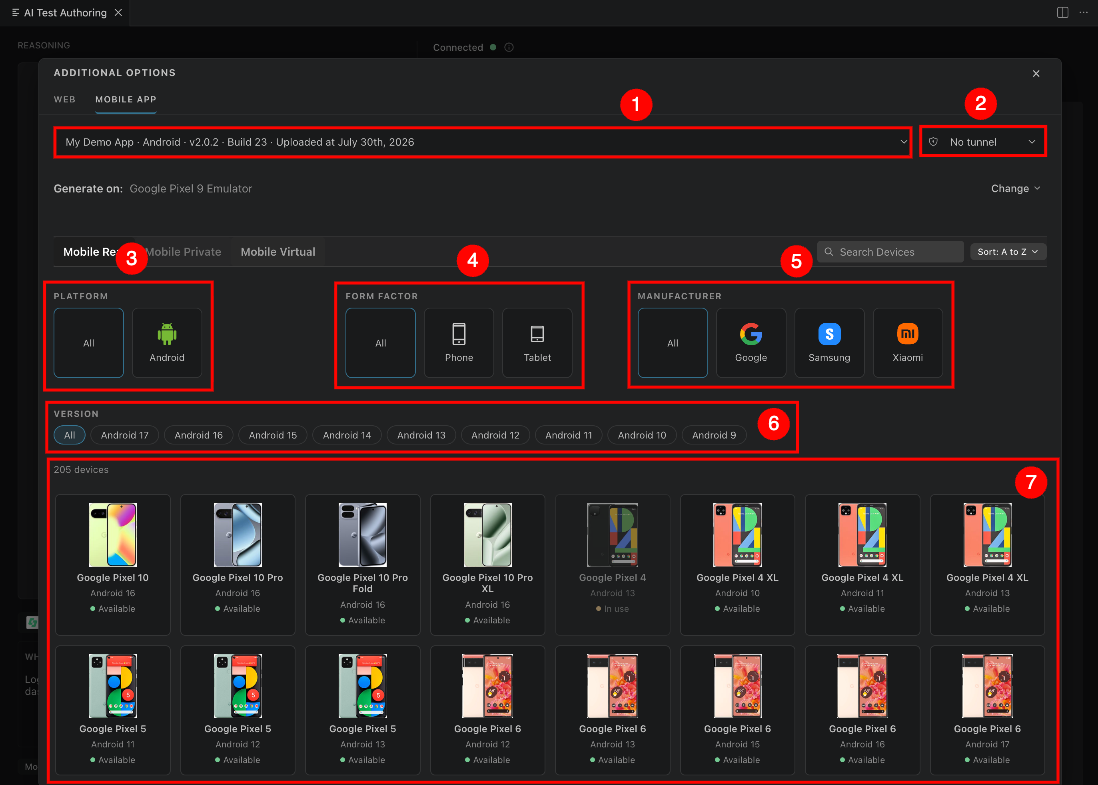
To generate a test for a mobile application, select the Mobile App tab. Choose an app build that has already been uploaded to Sauce Labs App Storage, then configure the target device.
The following table describes the available configuration options.
| Ref. | Configuration | Description |
|---|---|---|
| 1 | App Build | Select the application build that you want Sauce AI to test. Only app builds that have been uploaded to Sauce Labs App Storage are available for selection. |
| 2 | Tunnel | Select a Sauce Connect tunnel if the app requires access to resources behind your firewall. Otherwise, leave No tunnel selected. |
| 3 | Platform | Select the mobile platform (Android or iOS). The available devices and operating system versions are filtered based on the selected platform. |
| 4 | Form Factor | Filter devices by form factor, such as Phone or Tablet, to quickly locate the type of device you want to test. |
| 5 | Manufacturer | Filter the available devices by manufacturer, such as Samsung, Google, Apple, or other supported vendors. |
| 6 | OS Version | Filter devices by operating system version to validate your application against specific Android or iOS releases. |
| 7 | Device | Select the real or virtual device on which Sauce AI will generate and execute the test. The selected device determines the hardware and operating system used during test execution. |
The device picker supports both Mobile Real Devices and Mobile Virtual Devices. Private mobile devices are not currently available in the device picker.
If you already have an active Real Device Cloud session open in the IDE extension, the authoring panel automatically detects the connected device and pre-populates the device and platform version fields. You can accept the detected values or select a different device before generating the test.
Review the Generated Test
After you click Generate, Sauce AI starts a live test session and executes the actions described in your prompt.
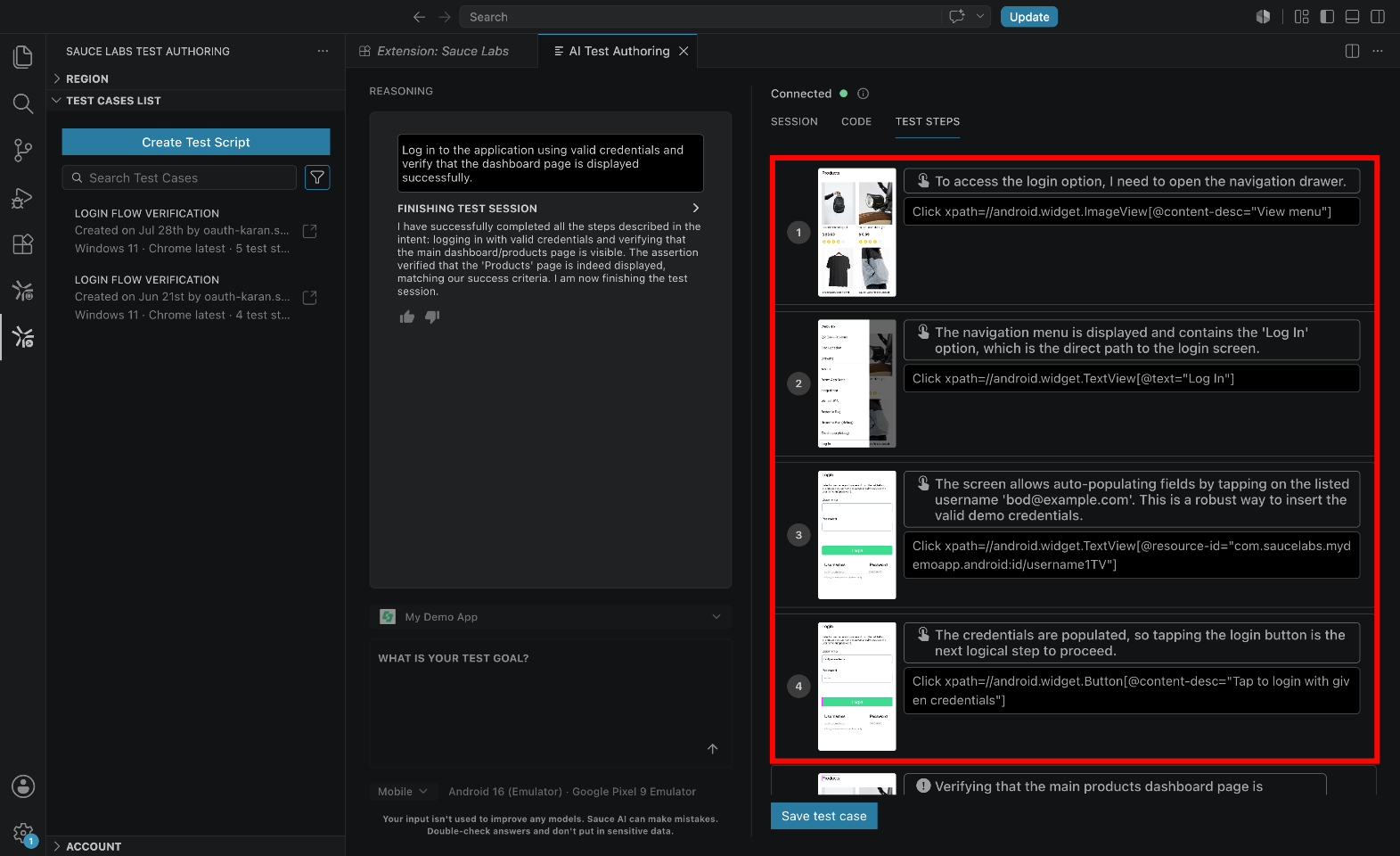
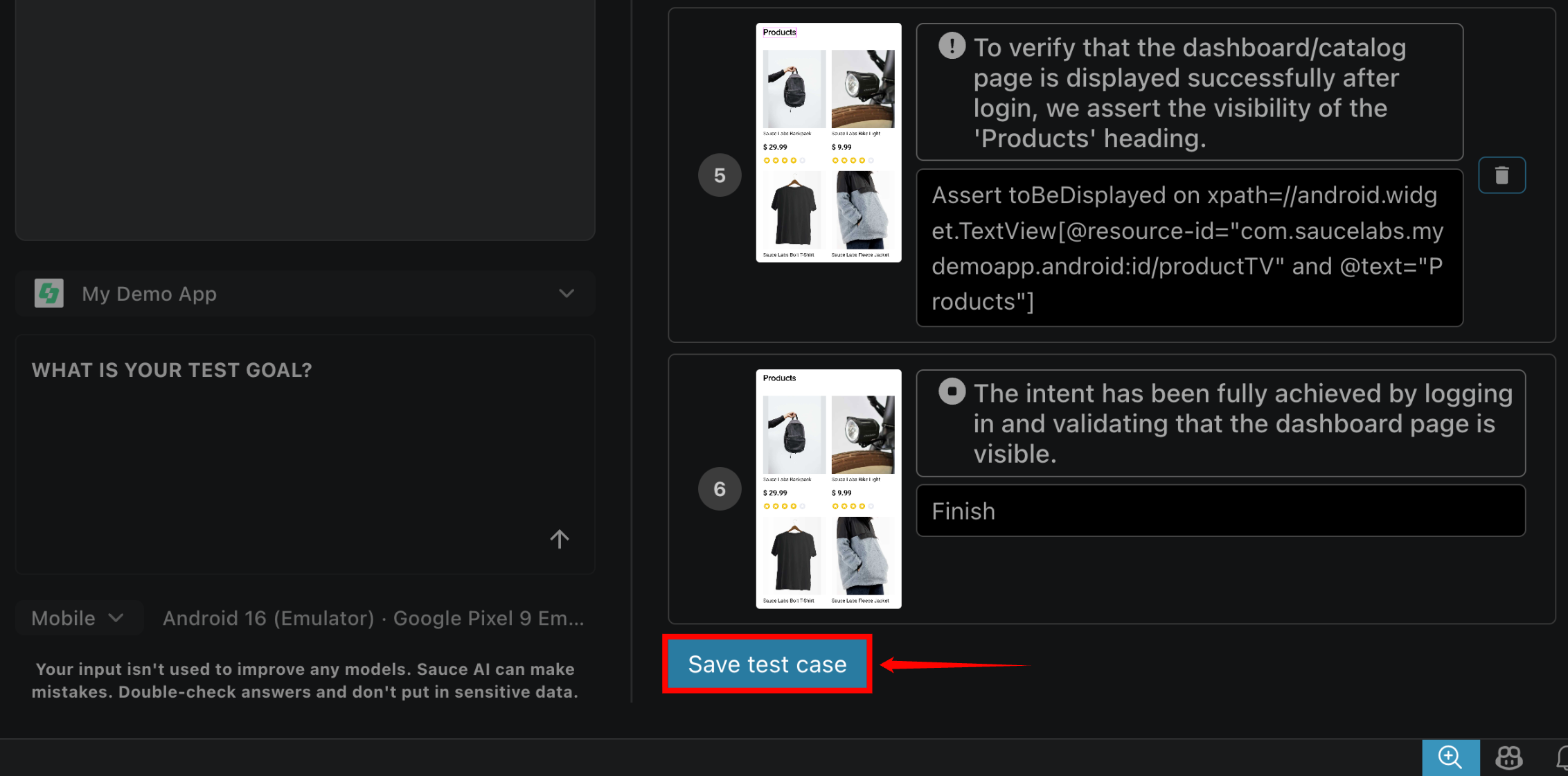
During test generation, the Reasoning panel displays the actions performed by the AI and explains how it interprets your prompt. At the same time, each completed action is added to the Test Steps tab.
Each generated test step includes:
-
Screenshot – A screenshot captured when the step was executed.
-
Action – A plain-language description of the action performed.
-
Locator – The locator used to identify the UI element.
-
Assertions – The validations performed to verify the expected behavior or application state.
Review the generated test steps to ensure they match the workflow you intended to automate. If the generated test does not meet your requirements, update your prompt and click Generate again to create a new version of the test.
Generate and Save the Test Code
After you have reviewed the generated test steps and confirmed that the workflow meets your requirements, open the Code tab to view the generated automation code.
Select a Testing Framework
Use the Choose language dropdown to select the testing framework and programming language for the generated test.
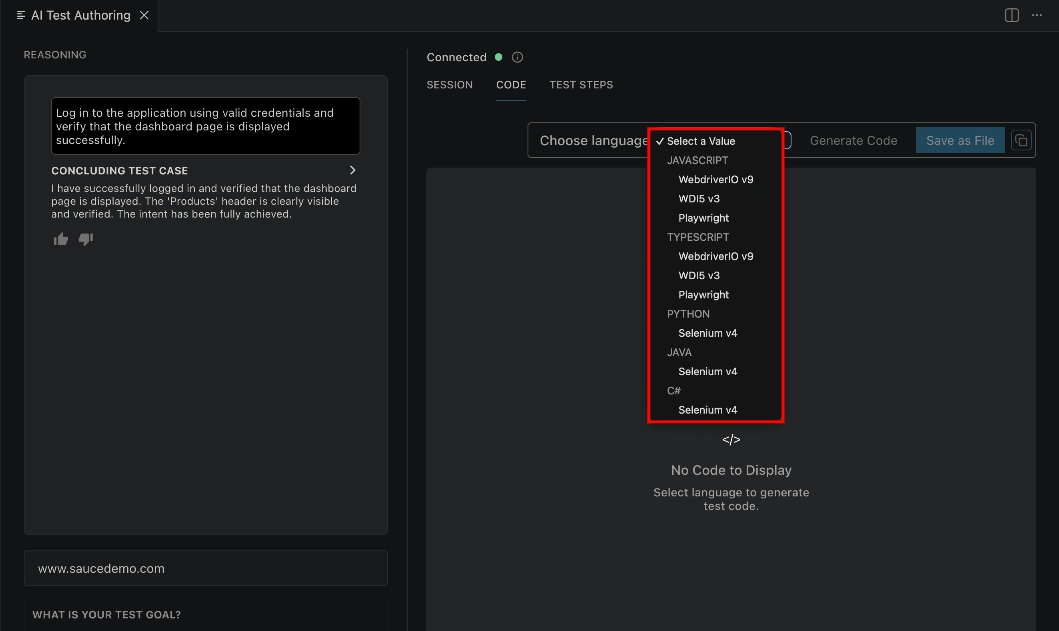
The available frameworks are based on your Sauce Labs account configuration. Some frameworks may be marked as Preview, indicating that they are still under active development.
When you select a framework, Sauce AI automatically generates the corresponding test code.
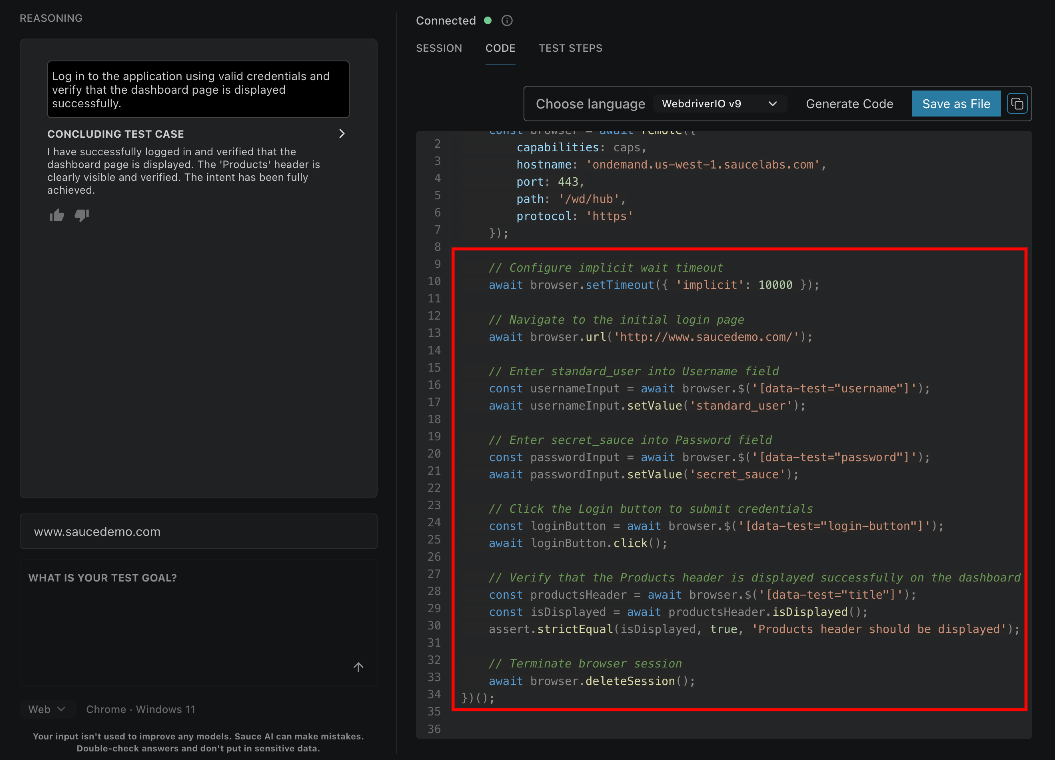
Save or Reuse the Generated Code
After the code is generated, choose one of the following options:
| Option | Description |
|---|---|
| Insert | Inserts the generated code into the file currently open in your editor. |
| Save | Saves the generated code as a new file in your workspace, allowing you to add it to your repository and include it in your CI/CD pipeline. |
| Copy | Copies the generated code to the clipboard so you can paste it into another file or project. |
Before saving or using the generated code, review it to ensure it matches your application's workflow and testing requirements. If necessary, update your prompt, regenerate the test, and review the code again until it meets your expectations.
Manage Saved Test Cases
Every generated test is automatically saved to your Sauce Labs account and appears in the Test Cases panel in the IDE. From this panel, you can open, run, rename, edit, and delete your saved test cases without leaving your development environment.
Test cases remain synchronized with the Sauce Labs Test Authoring web application, allowing you to move seamlessly between the IDE and the web interface. You can start creating or editing a test in one interface and continue working with the same test in the other without losing your progress.
You can also save a generated test to an existing test suite directly from the IDE. Creating new test suites is currently supported only in the Sauce Labs Test Authoring web application.
Known limitations
- Device lists in the mobile picker sort A to Z or Z to A only. Sorting by Preferred or Pinned devices is not available in the IDE yet.
- Opening several test case tabs at once can make each tab slower to load its device and platform list, because every tab fetches the list independently. The tabs remain fully independent and work normally.
For guidance on writing prompts that generate reliable tests, see the AI Authoring Prompting Guide.