Connect ADB, Xcode, and libimobiledevice to Sauce Labs Remote Devices
Testing on real devices shouldn't mean maintaining a device lab. But until now, using low-level tools like ADB or Xcode Instruments on cloud devices required a proprietary client and a complex setup.
The Real Device Access API changes that. Reserve a device with a single API call, then connect your existing tools — adb, Xcode, Instruments, idevicesyslog, any libimobiledevice utility — as if the device were on your desk. All you need is a local reverse proxy and your Sauce Labs credentials. No proprietary software. No Java runtime. Just your tools, talking to our devices.
Your existing scripts, profilers, and workflows carry over unchanged. See How It Works for the technical details.
Xcode integration is only supported on iOS 16 and earlier. On iOS 17+, libimobiledevice tools work but Xcode does not. We are working on support for iOS 17+. See Limitations for details.
What You'll Need
curl,jq- Android:
websocat,adb - iOS:
websocat,socat,libimobiledevice, root access
How It Works
When a device is physically connected via USB, your tools communicate through a local protocol — ADB on Android, usbmuxd on iOS. The Real Device Access API preserves this exact interface but routes the connection over the internet.
The technical challenge is transporting the same bytes that would normally flow over a USB cable — reliably and securely, across the public internet. The solution: when you start a session, the API returns a WebSocket endpoint for your device. A lightweight local reverse proxy encodes the bytes into WebSocket frames, transports them over TLS to the Sauce Labs API, which decodes them and delivers them to the device. Everything in between — the reverse proxy, the WebSocket connection, the TLS encryption — is just transport. Your tools send the same bytes they always do, and the device receives the same bytes it always would.
┌──────────────────┐      ┌──────────────────┐      ┌──────────────────┐      ┌──────────────────┐
│   Your Tools     │      │  Local Reverse   │      │  Sauce Labs API  │      │  Remote Device   │
│                  │ TCP  │  Proxy           │ WSS  │                  │      │                  │
│  adb             ├─────▶│  websocat        ├─────▶│  api.*.saucelabs ├─────▶│  adb daemon      │
│  Xcode           │      │  socat           │      │  .com            │      │  usbmuxd         │
│  libimobiledevice│      │                  │      │                  │      │                  │
└──────────────────┘      └──────────────────┘      └──────────────────┘      └──────────────────┘
     localhost                  localhost                 internet               Sauce Labs cloud
- Your tools connect to
localhost— they don't know or care that the device is remote. - The local reverse proxy (
websocat,socat) accepts that local connection, encodes the bytes into WebSocket frames, and sends them over TLS to the Sauce Labs API. - The Sauce Labs API decodes the frames and delivers the raw bytes to the device in our cloud.
- The remote device receives the same protocol stream it would over USB.
Setup
1. Create a Session and Get the WebSocket Endpoint
Start a session and, once it's active, grab the WebSocket endpoint from the response — links.adbUrl for Android, links.usbmuxdUrl for iOS.
export BASE_URL="https://api.us-west-1.saucelabs.com/rdc/v2"
export AUTH="$SAUCE_USERNAME:$SAUCE_ACCESS_KEY"

# Create the session
curl -X POST -u $AUTH \
  -H "Content-Type: application/json" \
  -d '{"device": {"os": "android"}}' \
  "$BASE_URL/sessions"

# Once active, extract the endpoint
curl -s -u $AUTH "$BASE_URL/sessions/{session_id}" | jq '.links'
2. Connect Your Tools
Android:
websocat -b tcp-l:127.0.0.1:50371 "$ADB_URL" \
  --basic-auth "$SAUCE_USERNAME:$SAUCE_ACCESS_KEY" \
  -H "sessionId: $SESSION_ID" &
This starts websocat listening on local TCP port 50371. Every byte that arrives on that port is wrapped into a WebSocket frame and sent to the Sauce Labs endpoint, which forwards it to the device's ADB daemon. The -b flag ensures binary mode — no text conversion, just raw bytes in both directions.
Now point adb at that local port:
adb connect localhost:50371
adb thinks it's talking to a device on the local network. In reality, every command — adb shell, adb install, adb push — travels through the WebSocket tunnel to the remote device.
Verify with adb devices — you should see localhost:50371 listed.
iOS (requires root):
We need two tools working together here: socat to listen on the Unix socket, and websocat to tunnel each connection to the WebSocket endpoint. The problem is that socat spawns commands via EXEC, which doesn't handle multi-argument commands with quoted values well — the quotes get stripped and arguments break apart. The simplest fix is a small wrapper script that bakes in the correct websocat command, so socat only needs to call a single file path.
# Back up the real usbmuxd socket
sudo mv /var/run/usbmuxd /var/run/usbmuxd.real

# Create a wrapper script that socat will call for each connection
WRAPPER=$(mktemp /tmp/usbmuxd-ws-XXXXXX)
printf '#!/bin/bash\nexec websocat --binary "%s" --basic-auth "%s:%s" -H "sessionId: %s"\n' \
  "$USBMUXD_URL" "$SAUCE_USERNAME" "$SAUCE_ACCESS_KEY" "$SESSION_ID" > "$WRAPPER"
chmod +x "$WRAPPER"

# Bridge the socket to the remote device
sudo socat UNIX-LISTEN:/var/run/usbmuxd,fork,mode=0666 \
  EXEC:"$WRAPPER" &
This replaces the system usbmuxd socket with one that tunnels to the remote device. socat listens on the Unix socket and, for each incoming connection, spawns the wrapper script which bridges it to the Sauce Labs endpoint via websocat.
Wait a few seconds, then verify:
idevice_id -l
The remote device's UDID should appear. From here, Xcode, Instruments, idevicesyslog, and all libimobiledevice tools will discover and interact with the device as if it were connected via USB.
The $WRAPPER script bakes in the session ID at creation time. When you start a new session, you must recreate the wrapper script and restart socat — the old wrapper will still reference the previous session.
Use Cases
Use our remote devices in Android Studio
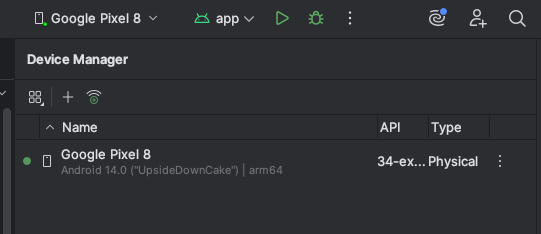
Once adb connect localhost:50371 is established, Android Studio automatically detects the remote device. It appears in the device dropdown and you can deploy, run, and debug apps just like a locally connected device. Profiling tools (CPU, memory, network) also work — follow the Android Studio profiling guide.
Take a screenshot via ADB:
adb shell screencap -p /sdcard/screen.png
adb pull /sdcard/screen.png ./screen.png
Port forwarding with adb forward
You can forward a local port to a port on the remote device. This is useful for communicating with services running on the device — for example, a debug server or a local web server inside your app.
adb forward tcp:40000 tcp:50000
This forwards localhost:40000 on your machine to port 50000 on the device. Note that adb reverse (device-to-host forwarding) is not supported — see Limitations.
Xcode (iOS 16 and earlier)
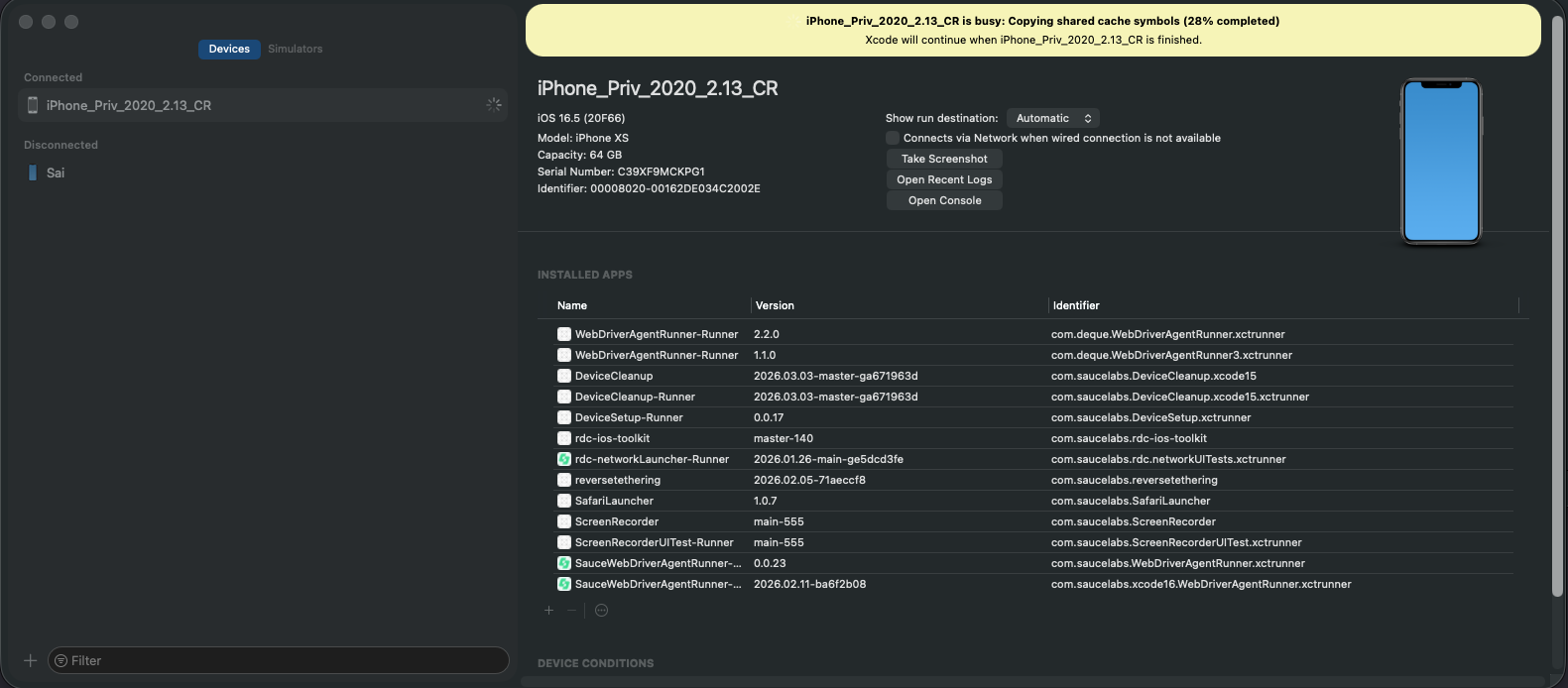
After setting up the usbmuxd bridge, close and reopen Xcode. The remote device will appear in Window > Devices and Simulators (Cmd+Shift+2) after a few seconds. Debugging and other Xcode functions work out of the box.
libimobiledevice (all iOS versions)
Stream device logs:
idevicesyslog
Reference Script
For a turnkey setup that handles both platforms, see the api-connect.sh reference script.
Cleanup
Close the session and stop the local reverse proxy:
# Close the session
curl -X DELETE -u $AUTH "$BASE_URL/sessions/{session_id}"

# Android: disconnect adb and stop websocat
adb disconnect localhost:50371
kill %1

# iOS: stop socat and restore the original usbmuxd socket
kill %1
sudo mv /var/run/usbmuxd.real /var/run/usbmuxd
Troubleshooting
adb connecttimes out — verifywebsocatis still running and theadbUrlis correct. Check that your credentials are valid.idevice_id -lreturns nothing — ensure you're running as root, the original socket was backed up successfully, andsocatis running.- Connection drops after a period of inactivity — the session may have timed out. Check session state with
GET /sessions/{session_id}. - Xcode takes a long time on first connection (iOS) — Xcode downloads iOS device symbols on first connection. Over the tunnel this can take several minutes. Check
~/Library/Developer/Xcode/iOS DeviceSupport/— the folder for your iOS version should be over 1GB once complete. This is a one-time download per iOS version.
Performance over the tunnel
The tunnel adds latency compared to a local USB connection — every byte travels from your machine over the internet to the device and back. For most interactive use (ADB shell, debugging, log streaming) this is barely noticeable. However, operations that transfer large amounts of data can be slower:
Screen recording and live view: Rather than streaming the screen through ADB or Xcode, use the liveViewUrl from the session response to open a browser-based live view that streams directly from our infrastructure.
App installation: Installing via adb install or Xcode pushes the entire binary through the tunnel. Instead, use the installApp API endpoint, which installs from Sauce Labs App Storage directly onto the device. This is significantly faster, and Sauce Labs can instrument your app during installation for features like crash reporting and performance monitoring.
Limitations
adb reverseis not supported — useadb forwardinstead.- iOS access requires root to replace the
/var/run/usbmuxdsocket. - iOS 17+: Xcode integration does not work. iOS 17 introduced a new RemoteXPC protocol that Xcode uses for pairing, debugging, and device management — this protocol is not carried over the usbmuxd tunnel. libimobiledevice tools (
idevice_id,idevicesyslog, etc.) still work on iOS 17+ since they use the older lockdownd protocol over usbmuxd. We are working on support for iOS 17+. - iOS 16 and earlier: Full Xcode support — devices appear in Devices & Simulators, debugging and other Xcode functions work. An Xcode restart may be required after setting up the bridge for the device to appear.