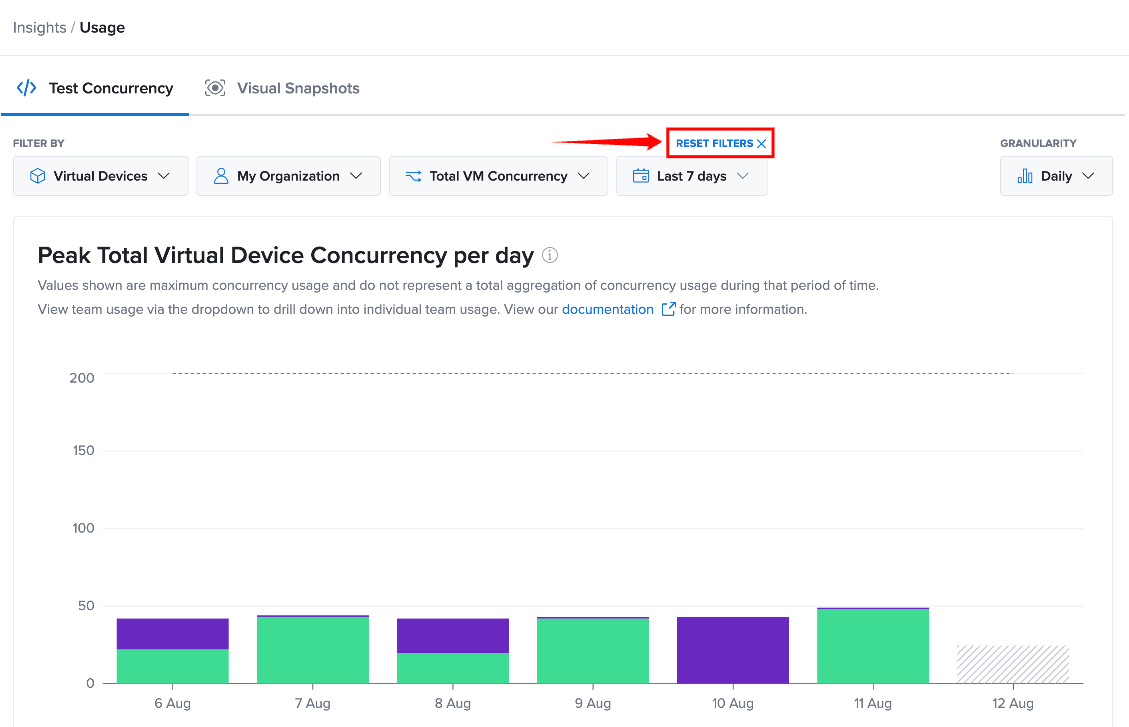
Filter Control for Concurrency Usage
Use the filters in the Test Concurrency view to narrow the concurrency data displayed in the Usage report. These controls allow you to focus on a specific testing environment, organization or team, concurrency type, or reporting period. You can also change the Granularity to control how the usage data is grouped.
The selected filters are reflected in the chart and data table, allowing you to analyze the concurrency usage that is relevant to your needs.
Available Filters
| Filter / Control | Description |
|---|---|
| Environment | Select Virtual Devices or Real Devices to view concurrency usage for the selected testing environment. |
| Owner | Select My Organization, My Team, or a specific team to view concurrency usage for that scope. |
| Concurrency Type | Select the type of concurrency usage you want to review, such as Total VM Concurrency, Android/Linux/Windows, Apple - x86, or Apple - ARM. |
| Time Period | Select the period for which you want to review concurrency usage, such as Today, Last 7 Days, Last 14 Days, Last 30 Days, or All Time. |
| Granularity | Controls how the concurrency data is grouped in the report, such as Daily. |
| Reset Filters | Clears the selected filters and returns the report to its default state. |
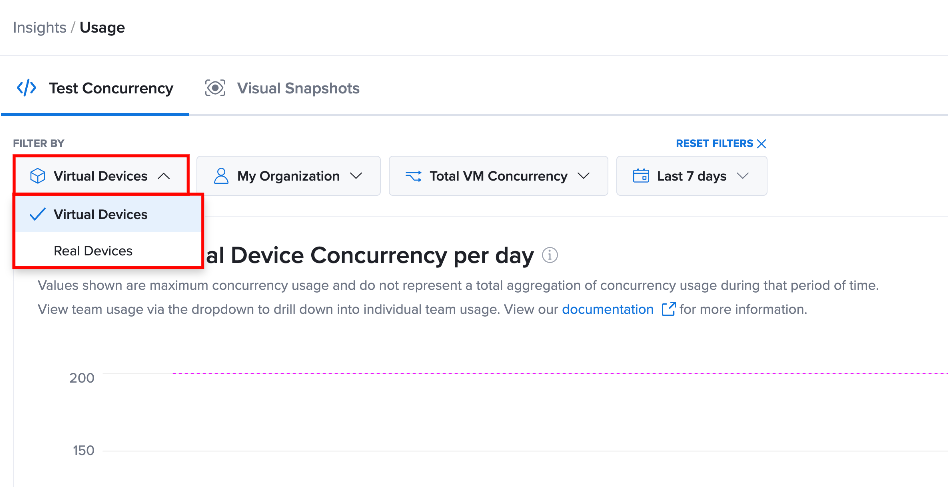
Environment
The Environment filter determines which testing environment is included in the Usage report. Use this filter when you want to focus your analysis on either virtual or real-device testing.
The available options are:
- Virtual Devices: Displays concurrency usage for tests running on virtual devices.
- Real Devices: Displays concurrency usage for tests running on real devices.
Selecting an environment updates the Usage report to display the concurrency data associated with that environment.
For example, selecting Virtual Devices allows you to review concurrency usage associated with virtual-device testing without including real-device usage in the displayed data.
Owner
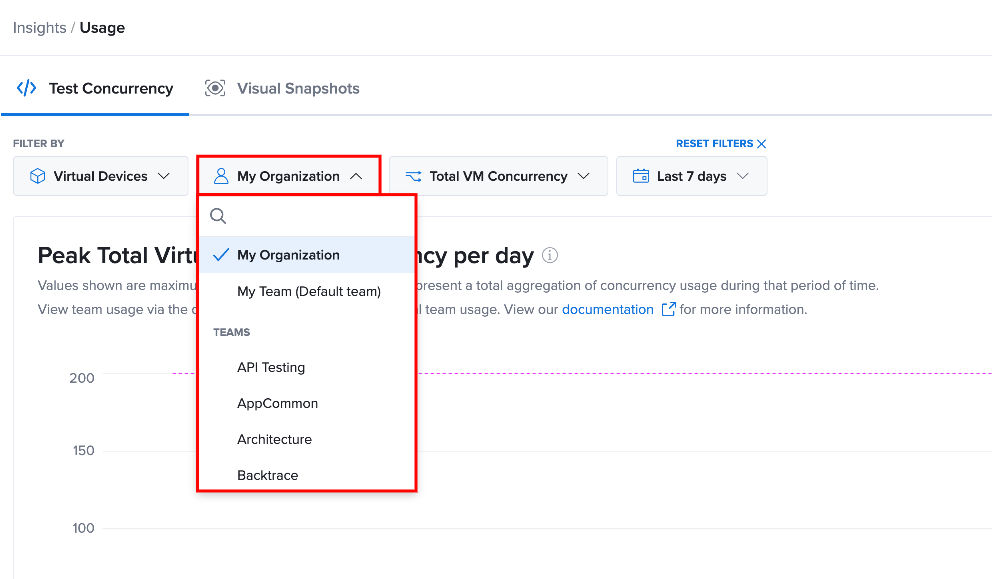
The Owner filter determines whose concurrency usage you want to review. You can use this filter to move between an organization-level view and a team-level view.
The available options include:
- My Organization: Displays concurrency usage across your organization.
- My Team: Displays concurrency usage associated with your current team.
- Teams: Allows you to select a specific team and review its concurrency usage.
When you select My Organization, the report provides an overall view of organization-level concurrency usage. Selecting My Team or a specific team narrows the report to the selected team's usage.
This allows you to compare team activity with overall organization usage and understand how individual teams contribute to concurrency consumption.
Concurrency Type
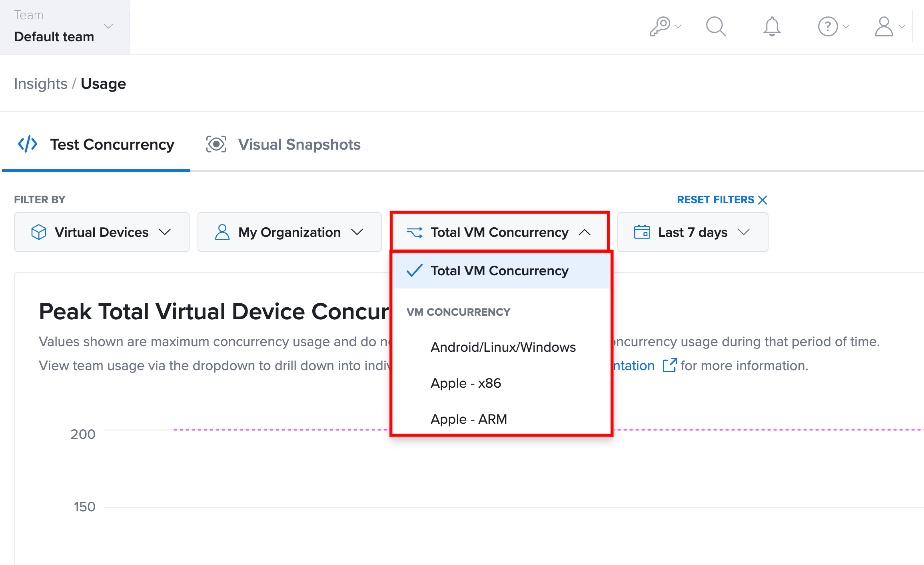
The Concurrency Type filter determines the type of concurrency usage displayed in the report.
Available options include:
- Total VM Concurrency: Displays the total concurrency usage for virtual machines.
- Android/Linux/Windows: Displays concurrency usage for tests running on Android, Linux, and Windows virtual environments.
- Apple - x86: Displays concurrency usage for Apple environments using x86-based processors.
- Apple - ARM: Displays concurrency usage for Apple environments using ARM-based processors.
The selected concurrency type determines the usage data represented in the chart and data table.
For example, selecting Total VM Concurrency provides an overall view of virtual-machine concurrency, while selecting a specific resource type allows you to focus on that type of concurrency usage.
Time Period
The Time Period filter determines the period covered by the Usage report. Use this filter to focus your analysis on a specific period of testing activity.
Available options include:
-
Today: Displays usage for the current day.
-
Last 7 Days: Displays usage from the previous seven days.
-
Last 14 Days: Displays usage from the previous fourteen days.
-
Last 30 Days: Displays usage from the previous thirty days.
-
All Time: Displays all available usage data.
Selecting a different time period updates the report to display concurrency usage for the selected period.
For example, selecting Last 7 Days allows you to review recent concurrency activity, while Last 30 Days provides a broader view of usage trends.
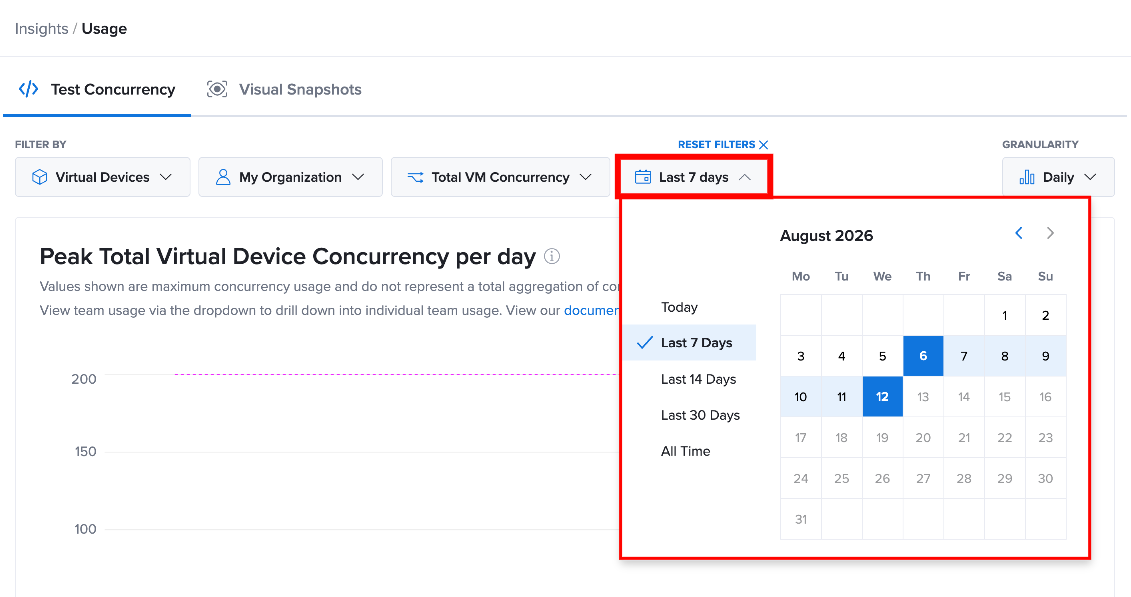
Combining Filters
You can combine multiple filters to create a more focused view of your concurrency usage.
For example, you can select:
- Environment: Virtual Devices
- Owner: My Organization
- Concurrency Type: Total VM Concurrency
- Time Period: Last 7 Days
- Granularity: Daily
With these selections, the Usage report displays the organization's virtual-device concurrency usage for the last seven days, grouped by day.
You can also select a specific team instead of My Organization to focus the report on that team's concurrency usage.
Combining filters allows you to move from a broad organization-level view to a more specific analysis of how and when concurrency resources are being used.
Reset Filters
Use Reset Filters when you want to remove your current filter selections and return to the default report view. Selecting Reset Filters clears the applied filters and refreshes the Usage report with its default settings. This allows you to start a new analysis without manually changing each filter individually.