iOS Live Accessibility Testing
This feature is currently in Closed Beta. Reach out to your Sauce Labs representative for access.
Real Devices Only iOS Only Live Testing Only
Sauce Labs provides a custom-built, native Accessibility Inspector for iOS live testing on real devices. The inspector works system-wide, allowing you to navigate and interact with any UI element on the device, including your app, system applications, system pop-ups, and webviews. It uses accessibility-based navigation, the same way VoiceOver works. A focus rectangle highlights the currently focused element on the device screen, and audio feedback reads aloud the element's spoken description.
The inspector supports all iOS devices and versions available on Sauce Labs.
This feature is useful for:
- Accessibility testing: Verify that your app's elements have correct labels, are in the right order, and are reachable via assistive technologies.
- Screen reader simulation: Hear audio feedback for each element, simulating the VoiceOver experience.
- Exploratory testing: Navigate element by element to discover UI structure and identify hard-to-reach elements.
What You'll Need
- A Sauce Labs account (Log in or sign up for a free trial license).
- An iOS real device session (Live Testing).
- Your app must be debuggable, or you need to enable the instrumentation flag in App Settings. This is a security limitation imposed by Apple.
Enabling the Inspector
- Start a Live Testing session on an iOS real device.
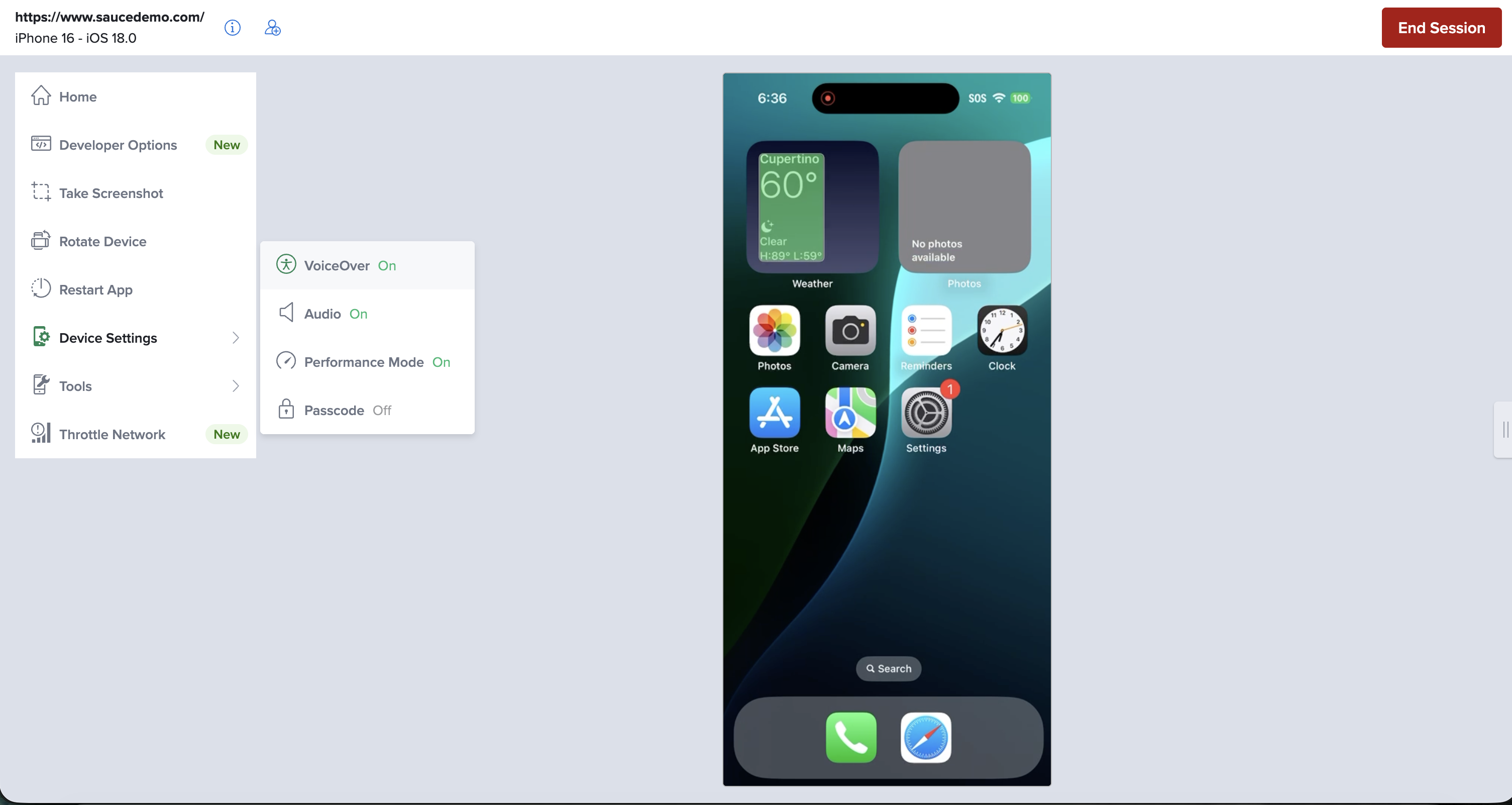
- Open the Device Settings from the left side toolbar.
- Toggle VoiceOver to On. This enables the Accessibility Inspector.
Key Capabilities
Full Keyboard Navigation
Navigate between accessible elements using keyboard shortcuts:
| Keyboard Shortcut | Action |
|---|---|
| Right Arrow | Move to the next accessible element |
| Left Arrow | Move to the previous accessible element |
| Up Arrow | Jump to the first element on the screen |
| Down Arrow | Jump to the last element on the screen |
Each time the cursor moves, the spoken description of the newly focused element is announced via audio and displayed in the toolbar. This description includes the element's label, its type (button, text field, image, etc.), and its position in the list (e.g., "Settings, Icon, 3 of 24").
Tap Action
Press Enter to tap the currently focused element. The inspector taps the element at its exact screen position, just like a finger tap.
After tapping an element that triggers navigation (e.g., tapping an app icon on the home screen or a menu item in Settings), the inspector automatically detects the screen change and repositions the cursor to the first element of the new screen.
Audio Feedback
The inspector provides audible cues for each focused element, simulating the VoiceOver screen reader experience. The audio reads the same spoken description that VoiceOver would announce.
Supported Interactions
Navigation
The inspector follows the same element ordering that VoiceOver uses on iOS. Elements are ordered top-to-bottom, left-to-right within the accessibility hierarchy defined by the app. Custom accessibility containers and groupings set by the app developer are respected.
Tapping
The following interactions work with the tap action:
- Buttons and links: Standard tap to activate.
- App icons on the home screen: Tap to launch the app.
- List items: Tap to navigate into sub-screens (e.g., Settings rows).
- Toggle switches: The inspector detects switch elements and taps the toggle control directly. For example, tapping an "Airplane Mode" row taps the switch itself, not the row label.
- System applications and pop-ups: Tap elements in system apps (e.g., Settings) and system dialogs (e.g., permission prompts).
Screen Change Detection
When the screen changes (e.g., after tapping into a new page), the inspector:
- Detects the screen transition automatically.
- Repositions the cursor to the first element on the new screen.
- Announces the spoken description of the first element.
Limitations and Known Issues
Screen Change and Focus Sync
- Stale focus after screen change. After a screen transition, the focus rectangle may briefly remain on elements from the previous screen. You may need to navigate past stale elements for the inspector to synchronize with the new screen.
- Strange rectangles during navigation. Occasionally, unexpected focus rectangles may appear during navigation. Press Up Arrow to jump to the first element and start navigating again.
- Initial focus may not land on the first element. After enabling the inspector, the focus should land on the first element. In some cases this does not work. Press Right Arrow a few times, then Up Arrow to reset focus to the first element.
Tap Behavior
- Weather app widget. The Weather widget on the home screen is not tappable on some devices.
- Some Files app folders. Certain folders in the Files app may not be tappable.
- Tapping blocks other commands. While a tap is being processed, navigation commands are queued and will execute once the tap completes.
- Elements with identical labels. If multiple elements share the same label (e.g., several "ON" labels for different switches), the inspector uses element type and accessibility identifiers to select the correct one. In rare cases, the wrong element may be tapped.
App Requirements
- Debuggable app or instrumentation flag required. Your app must be debuggable, or you need to enable the instrumentation flag in App Settings. This is a security limitation imposed by Apple and cannot be bypassed.
Navigation
- Rapid navigation. Sending navigation commands very quickly (e.g., holding down an arrow key) may cause delayed responses as commands queue up on the device. Allow each navigation to complete before sending the next for the most reliable experience.
Upcoming Features
The following capabilities are planned for future releases:
- New shortcuts: Actions to go to the home screen, app switcher, and more.
- Enhanced input control: Ability to move the cursor on the on-screen keyboard.
- User preferences: Mute audio, display caption text.
More Information
- Audio Capture: Audio capture and streaming on iOS devices.
- Live Mobile App Testing: Overview of live testing features on real devices.