Android Live Accessibility Testing
Real Devices Only Android Only Live Testing Only
TalkBack is Android's built-in screen reader. Sauce Labs allows you to enable TalkBack on real devices with a single click during live testing sessions, without going to the OS settings. A focus rectangle highlights the currently focused element on the device screen, you navigate between elements with the keyboard or the Action Toolbar, and the TalkBack audio for each focused element is streamed to your browser.
TalkBack is supported on all public and private Android real devices running Android 12 or above.
This feature is useful for:
- Accessibility testing: Verify that your app's elements have correct labels, are in the right order, and are reachable via assistive technologies.
- Screen reader testing: Hear the real TalkBack output for each element, spoken by the device itself.
- Exploratory testing: Navigate element by element to discover UI structure and identify hard-to-reach elements.
What You'll Need
- A Sauce Labs account (Log in or sign up for a free trial license).
- An Android real device session (Live Testing).
- Android 12 or above.
Enabling TalkBack
- Start a Live Testing session on an Android real device.
- In the left toolbar, toggle Accessibility to On. This enables TalkBack on the device.
Once enabled, an Action Toolbar appears next to the device screen with buttons for common accessibility actions, and a focus rectangle highlights the currently focused element.
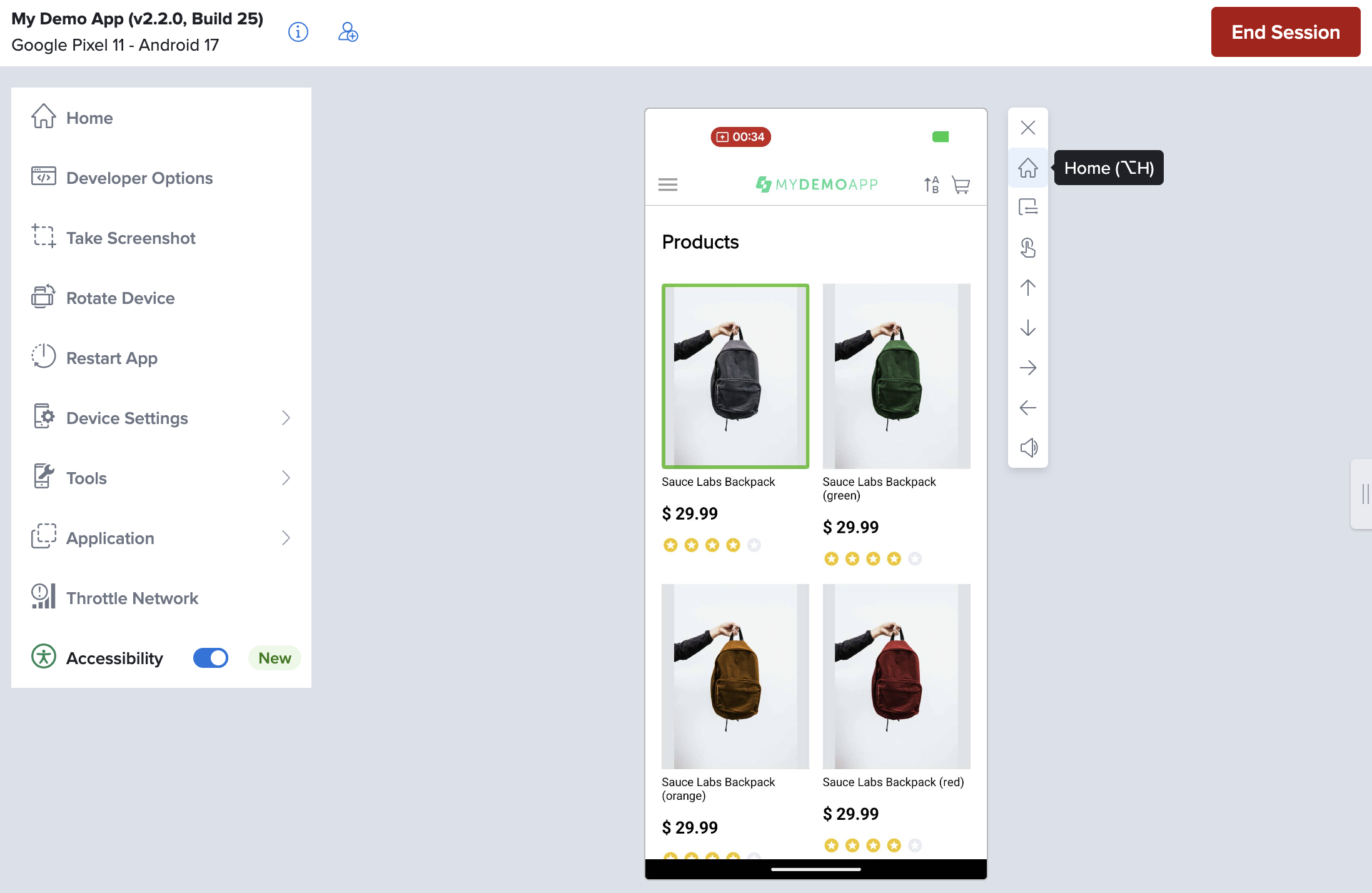
Action Toolbar
The Action Toolbar provides quick access to accessibility navigation actions. It appears next to the device screen while TalkBack is enabled.
| Button | Action |
|---|---|
| X | Turn off accessibility testing |
| Home | Go to the home screen |
| App Switcher | Open the app switcher |
| Tap | Tap the currently focused element |
| Up | Jump to the first element on the screen |
| Down | Jump to the last element on the screen |
| Next | Move to the next accessible element |
| Previous | Move to the previous accessible element |
| Mute/Unmute | Mute or unmute the streamed device audio |
When a toolbar button has keyboard focus, press Space to activate it. Enter and the arrow keys are reserved for device navigation, so they are passed through to TalkBack instead of pressing the focused button.
Key Capabilities
Keyboard Navigation
Navigate between accessible elements using keyboard shortcuts:
| Mac | Windows | Action |
|---|---|---|
| Right Arrow | Right Arrow | Move to the next accessible element |
| Left Arrow | Left Arrow | Move to the previous accessible element |
| Up Arrow | Up Arrow | Jump to the first element on the screen |
| Down Arrow | Down Arrow | Jump to the last element on the screen |
| Enter | Enter | Tap the currently focused element |
| Ctrl + Shift + A | Ctrl + Shift + A | Turn accessibility testing on/off |
| Ctrl + Shift + S | Ctrl + Shift + S | Open the app switcher |
| Option + H | Alt + H | Navigate to the Home screen |
| Option + M | Alt + M | Mute/unmute audio |
Each time the cursor moves, TalkBack announces the spoken description of the newly focused element. This description includes the element's label, its type (button, text field, image, etc.), and its position in the list.
Tap Action
Press Enter or use the Tap button in the Action Toolbar to tap the currently focused element. The element is tapped at its exact screen position, just like a finger tap.
App Switcher
Press Ctrl + Shift + S or use the App Switcher button to open the Android app switcher. This lets you move between recent apps without leaving accessibility navigation.
Audio Feedback
Text-to-speech audio of the focused element is streamed to your browser as you interact with the device. Unlike iOS, where the spoken description is synthesized in your browser, TalkBack speaks on the Android device itself and that device audio is streamed to you.
Because of this, the Mute/Unmute button and Option + M control the streamed device audio, and stay in sync with the mute button in the main live testing toolbar.
For details on audio capture and streaming setup, see Audio Capture.
Text-to-speech audio is not available for download once the session is over.
Sharing Your Accessibility Session
You can share a live accessibility session so someone else can follow your test in real time. This is useful for collaborative accessibility reviews. An accessibility specialist can drive the session while developers or stakeholders watch along, seeing the focus rectangle move between elements and hearing the same audio feedback as it is announced.
To share your session:
- Start a Live Testing session on an Android real device and toggle Accessibility to On.
- In the live testing toolbar, click the
 Share Session icon to open the Share Device window.
 - Click Get Link to generate a shareable link.
- Send the link to the person you want to share the session with.
The viewer follows your session live, including the focus rectangle and the streamed TalkBack audio feedback, as you navigate element by element.
Viewers must be logged in to a Sauce Labs account to view the shared session.
For more details on sharing sessions, see Live Mobile App Testing.
Limitations
- Android 12 or above is required.
- Website testing is not yet available on Android.
- Text-to-speech audio is not available for download once the session is over.
More Information
- TalkBack official documentation
- iOS Live Accessibility Testing: The equivalent feature on iOS real devices.
- Audio Capture: Audio capture and streaming on Android devices.
- Live Mobile App Testing: Overview of live testing features on real devices.