View & Manage Fingerprint Status
Every fingerprint in the Triage dashboard has a status. The status tells your team whether an error still needs investigation, is being worked on, has been fixed, or has been muted.
Keeping statuses up to date helps your team prioritize work and avoid duplicated effort. You can filter the Triage dashboard by status to see only the fingerprints that still need attention, check which ones are already being handled, and confirm which ones have been resolved.
Statuses change in two ways. You can update a status manually from the Triage dashboard, and Error Reporting also changes statuses automatically when you assign a fingerprint or link it to an issue. You can also set a muted or resolved fingerprint to reopen automatically if the error comes back, which helps you catch regressions.
Fingerprint Statuses
| Status | Description |
|---|---|
| Open | The fingerprint needs investigation. A fingerprint is Open when it has no assignee or linked issue and is not Resolved or Muted. |
| In Progress | The fingerprint is being investigated. This status is applied when the fingerprint is assigned to a user or linked to an issue, such as a Jira issue. |
| Resolved | The underlying issue has been fixed and no longer needs investigation. |
| Muted | The fingerprint is hidden from active issues. Use it when the fingerprint needs no action or you don't want to track it. |
Update a Fingerprint Status
Step 1: In the Error Reporting web console, open Triage for the project that contains the fingerprint.
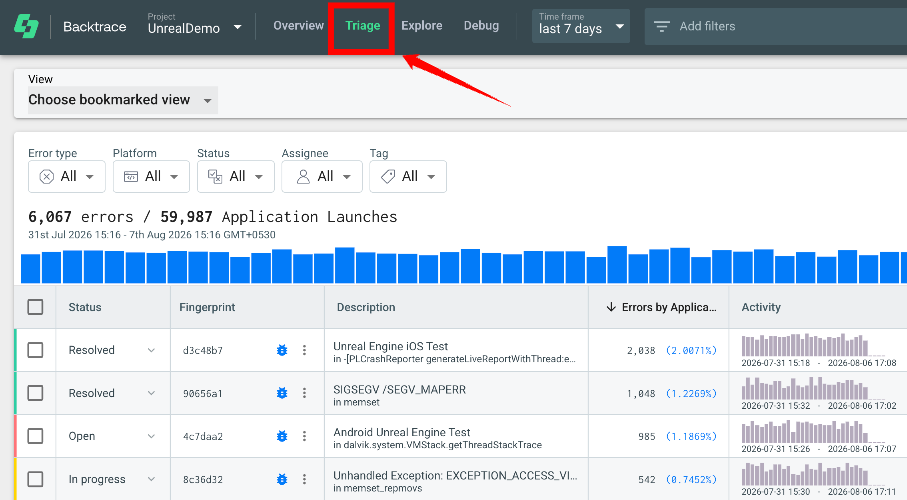
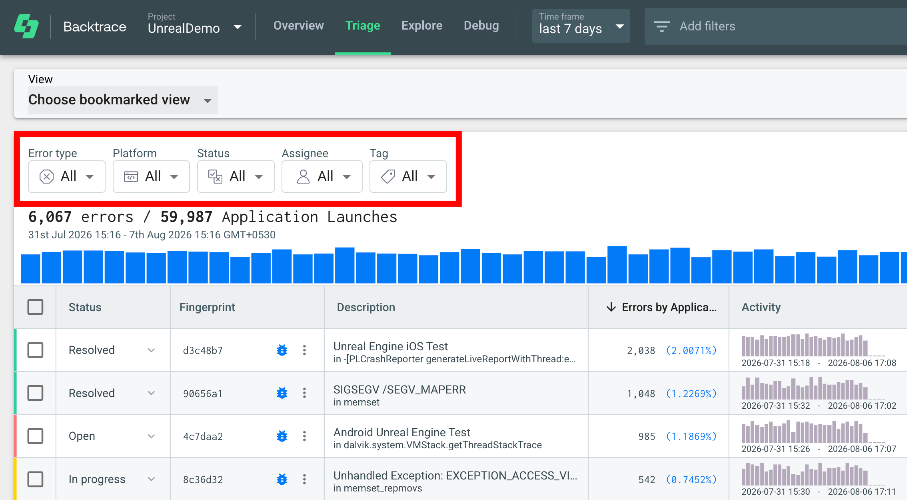
If needed, use the Time Frame selector or Filters to find the fingerprint.
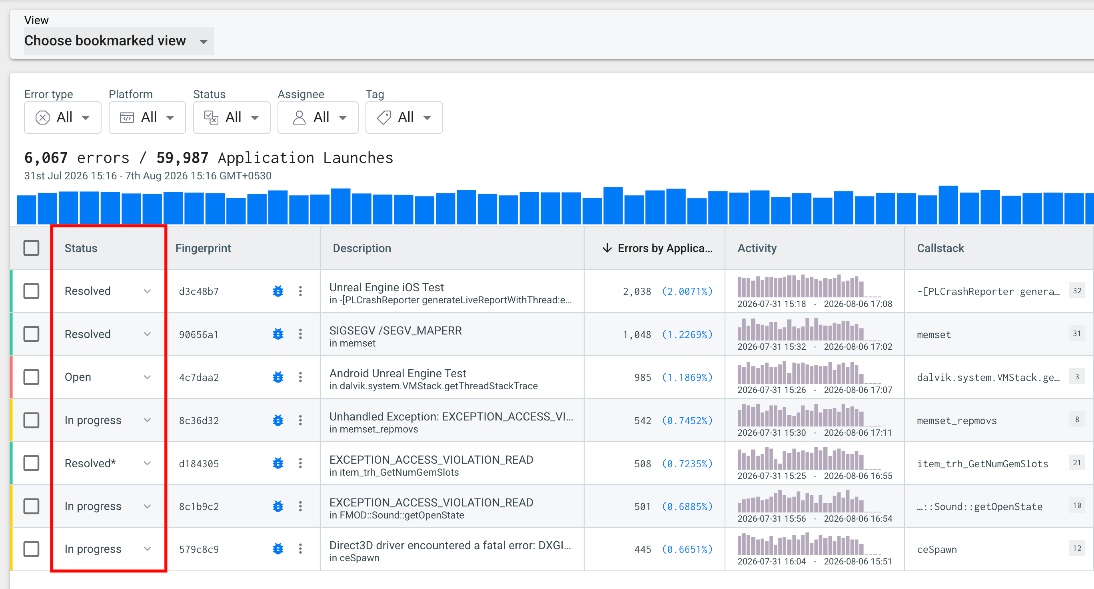
Step 2: In the fingerprint table, find the Status column for the fingerprint.
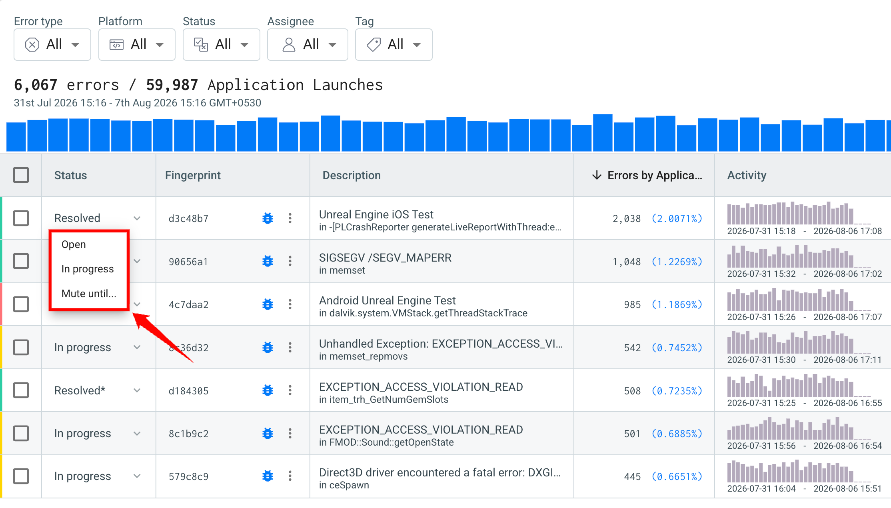
Step 3: Click the current status (for example, Open) to see the available options, then select the new status. The fingerprint's status updates in the Triage dashboard.
Automatic Status Changes
Error Reporting also updates statuses automatically:
- Assigning a fingerprint to a user changes its status from Open to In Progress.
- Linking a fingerprint to an external issue, such as a Jira issue, changes its status to In Progress.
- Removing all assignees and unlinking all issues returns an In Progress fingerprint to Open, unless it has been marked Resolved or Muted.
Reopen Criteria - Mute or Resolve Until
Use Mute Until or Resolve Until to reopen a muted or resolved fingerprint automatically when a condition is met. If the fingerprint is linked to an issue, such as a Jira issue, that issue is reopened too.
You can reopen a fingerprint when:
- It is seen in a version later than the one you specify.
- It is seen again after a specified period, such as 30 minutes, 2 hours, 1 day, 1 week, or 1 month.
When the condition is met, Error Reporting:
- Changes the fingerprint's status to Open.
- Reopens any linked issues.
- Increases
invariant_reopen_countby 1. - Sets
invariant_reopen_last_timeto the date and time the fingerprint was reopened.
Use these attributes in Triage and Explore to find regressions, which are fingerprints that were resolved or muted and have reopened.