Run Test Cases
After you have created and saved your AI-generated test cases, you can have them running directly from the Test Cases and Suites page. This allows you to validate your application behavior against the defined test flow and verify whether the expected actions and validations are completed successfully.
You can run your test cases on the selected browser, operating system, or device configuration.
Access the Test Case Execution
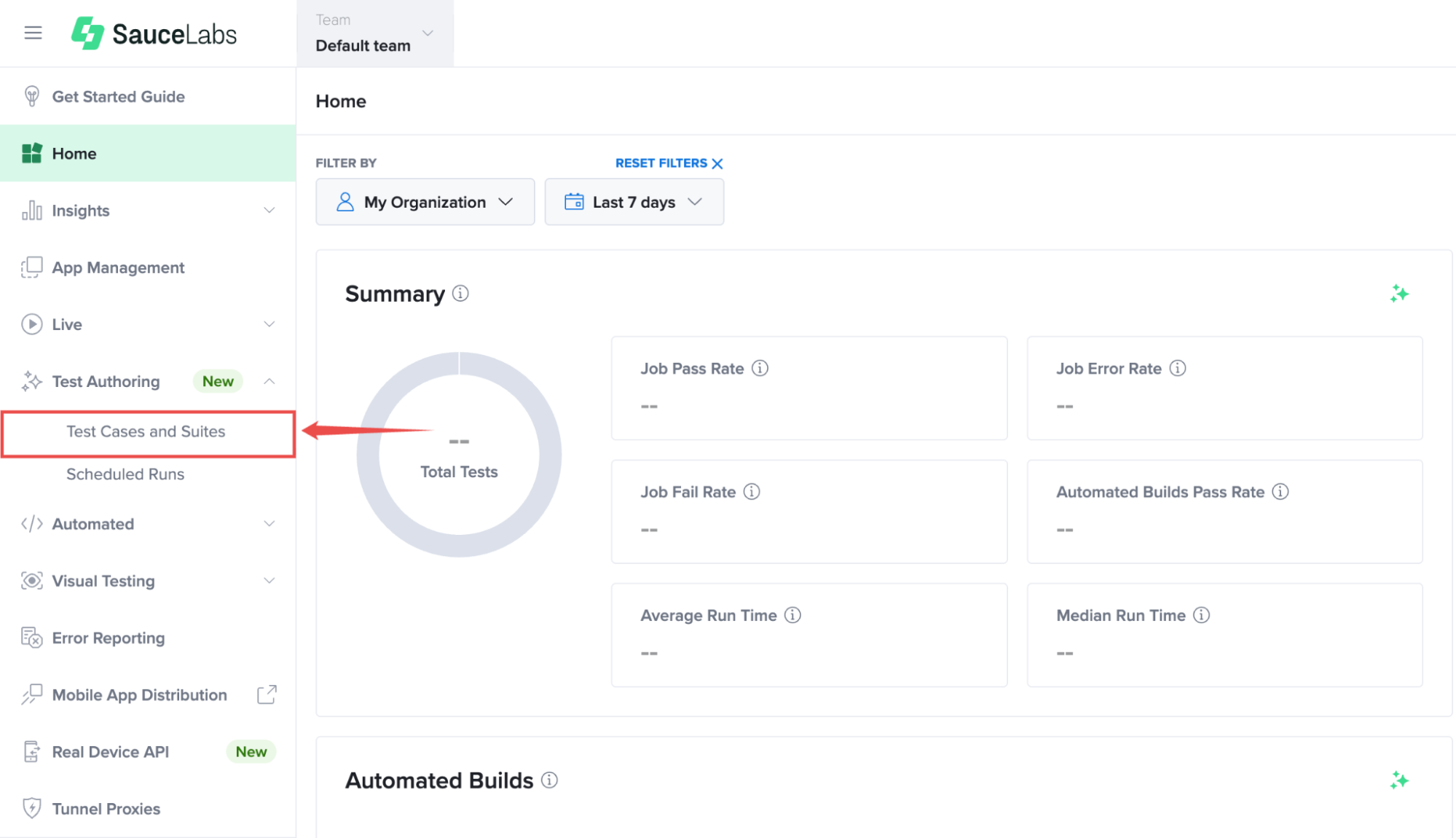
Step 1: Inside your Sauce Labs account, find Test Authoring from the left-hand navigation menu, expand its available options, and select Test Cases and Suites
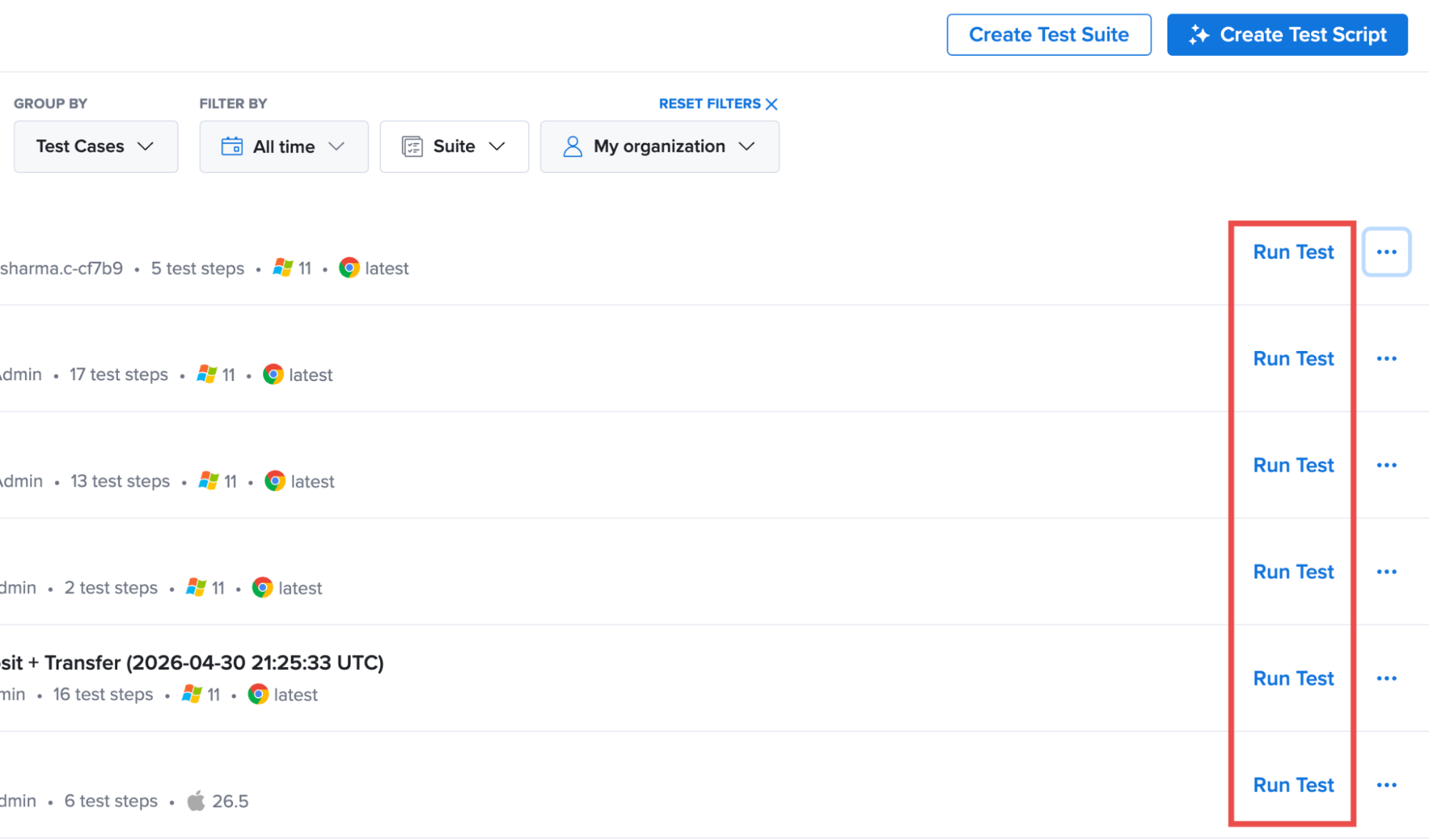
Step 2: Find the test case you want to trigger from the available test case list and click Run Test next to it to begin the workflow.
Configure and Start the Test Run
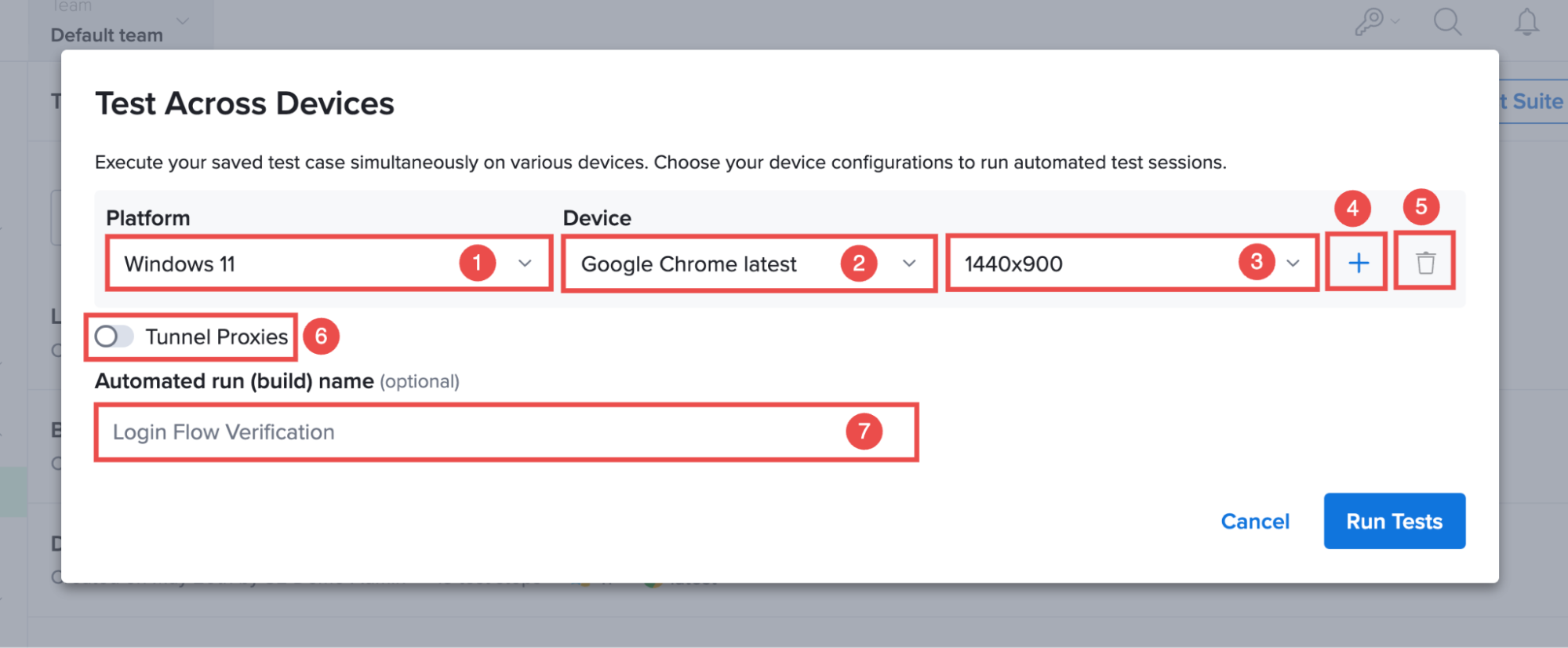
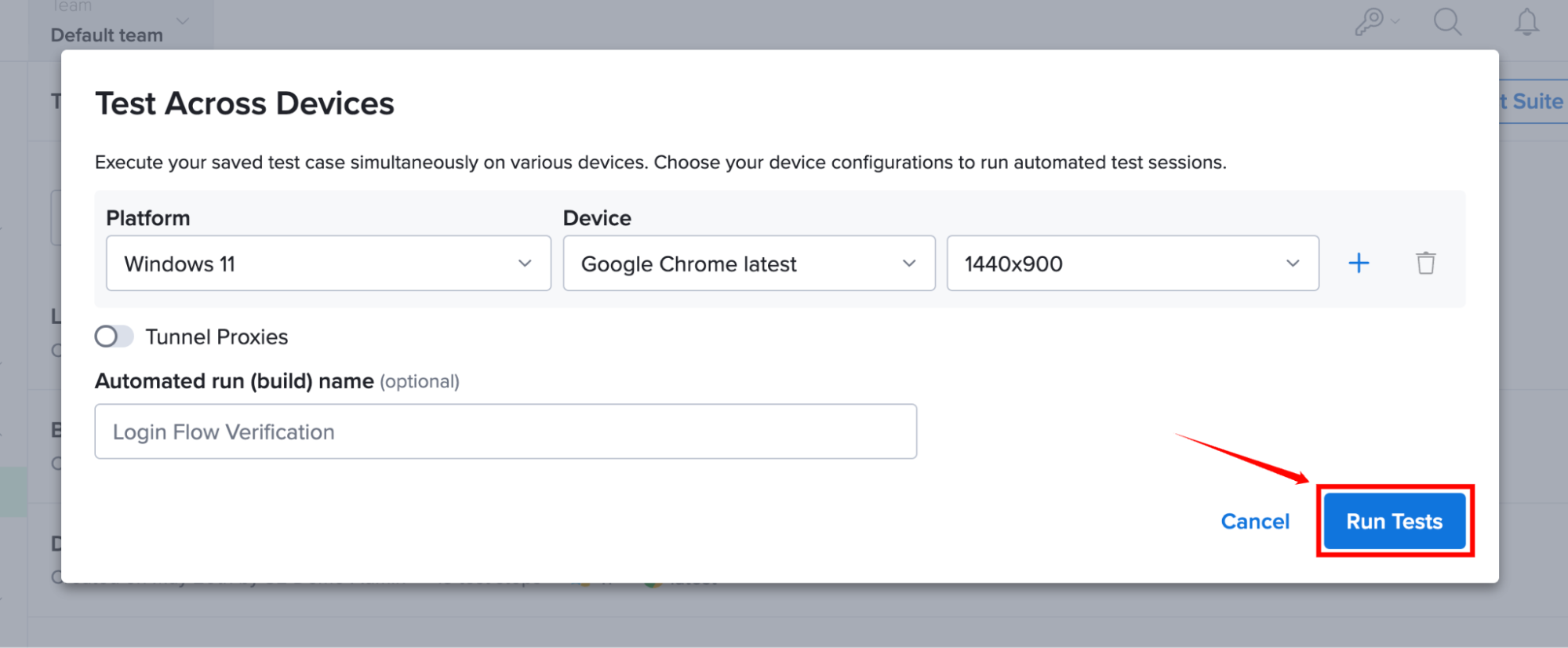
Before triggering the workflow, review and configure the required test execution settings, including:
| Ref. | Settings | Description |
|---|---|---|
| 1 | Platform | Select the operating system or platform on which you want to run the test, such as Windows, macOS, Android, or iOS. |
| 2 | Browser/Device | Choose the target browser or device configuration where the test case will run. For example, Google Chrome, Safari, or a specific mobile device. |
| 3 | Screen Resolution | Select the required screen resolution to run the test under a specific display configuration. |
| 4 | Add Configuration (+) | Click the + icon to add additional browser, device, or platform configurations and run the same test case across multiple environments simultaneously. |
| 5 | Remove Configuration (Delete) | Click the delete icon to remove an existing device configuration from the test run setup. |
| 6 | Tunnel Proxies | Enable this option to run tests against applications that are hosted in a private or internal network using Sauce Connect Proxy. |
| 7 | Automated Run (Build) Name | Enter a custom name for the test execution. If no name is provided, Test Authoring automatically assigns a default name using the test case name and an incrementing number |
Step 3: After reviewing the configuration, click Run to start executing the test case.
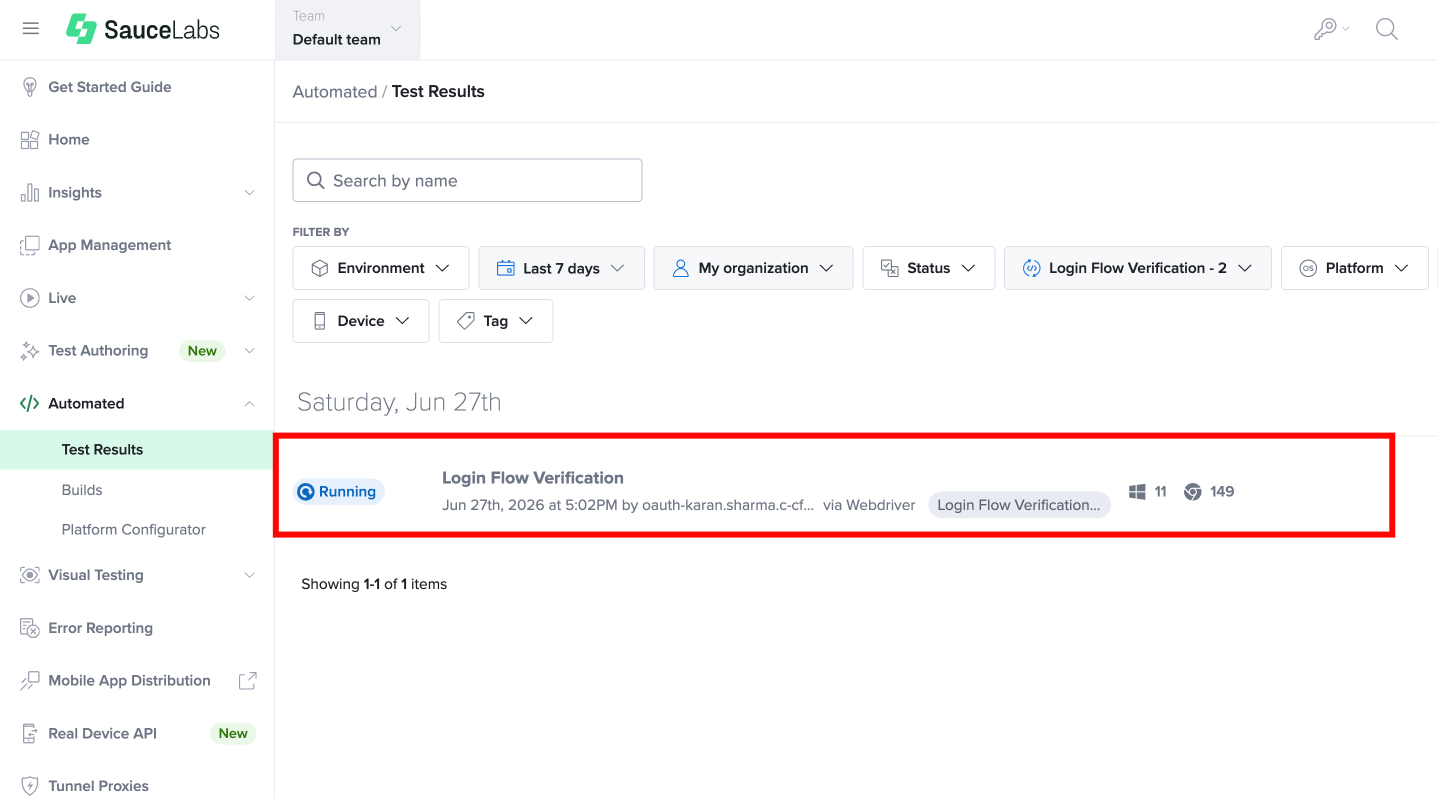
During execution, Test Authoring performs each generated test step in the selected environment and validates the expected outcomes. You can monitor the test execution progress and track the status of each test step while the test is running.
Run a Mobile Web Test Case
A test case authored as Mobile web is generated on emulated device dimensions based on your preferred mobile device, but it is not bound to them. At run time you can execute the saved test case against:
- Real mobile devices from the Real Device Cloud.
- Emulators and simulators from the Virtual Device Cloud.
This lets you author quickly using emulated device dimensions and then validate against the real hardware and OS versions your users are on.
Review Test Results
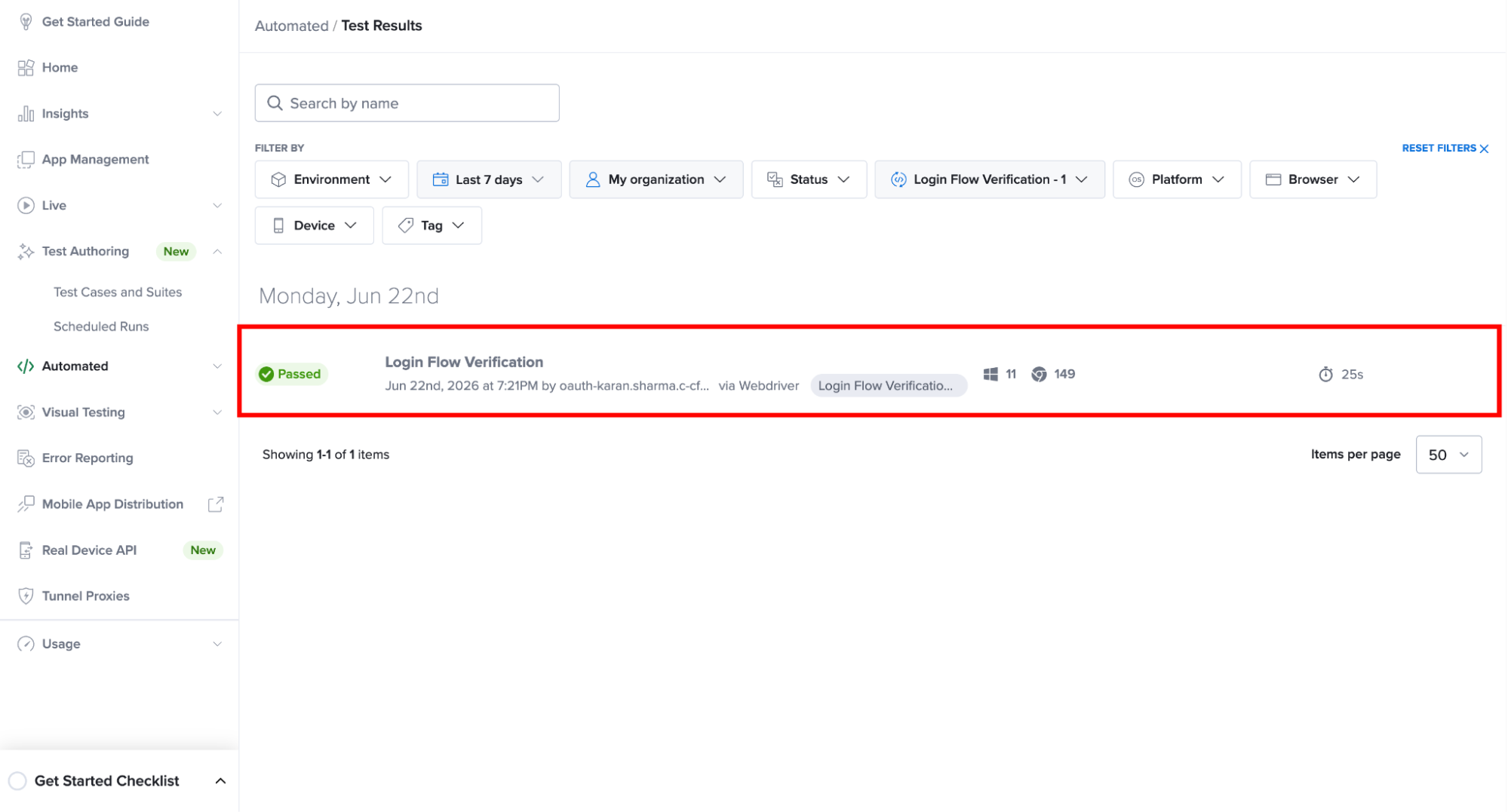
After the run is complete, navigate to Automated from the left-hand navigation menu, expand its available options, and select Test Results.
The test results include:
- Overall execution status (Passed or Failed)
- Test execution details
- Browser, device, and platform information
- Execution duration
- Error details and debugging artifacts, when available
If you modify a test case after running it, save the updated test case and run it again to validate the latest version of your test flow.