View Test Results
After running a test case or test suite from Test Authoring, Sauce Labs automatically groups all generated test sessions under an Automated Build. This makes it easier to organize, track, and analyze test executions through the Automated Test Results and Builds pages as well as the Home dashboard.
Each device or platform configuration included in a test case creates a separate automated test session during execution.
For example, if a test case is configured to run on Chrome and Firefox using the same Linux operating system, Sauce Labs creates a separate test session for each browser configuration.
The test results include standard Sauce Labs execution artifacts that help you analyze and troubleshoot test outcomes, such as:
- Screenshots captured during test execution.
- Execution logs and diagnostic information.
- Video recordings of the test session.
- Additional test metadata and execution details.
Access Test Results
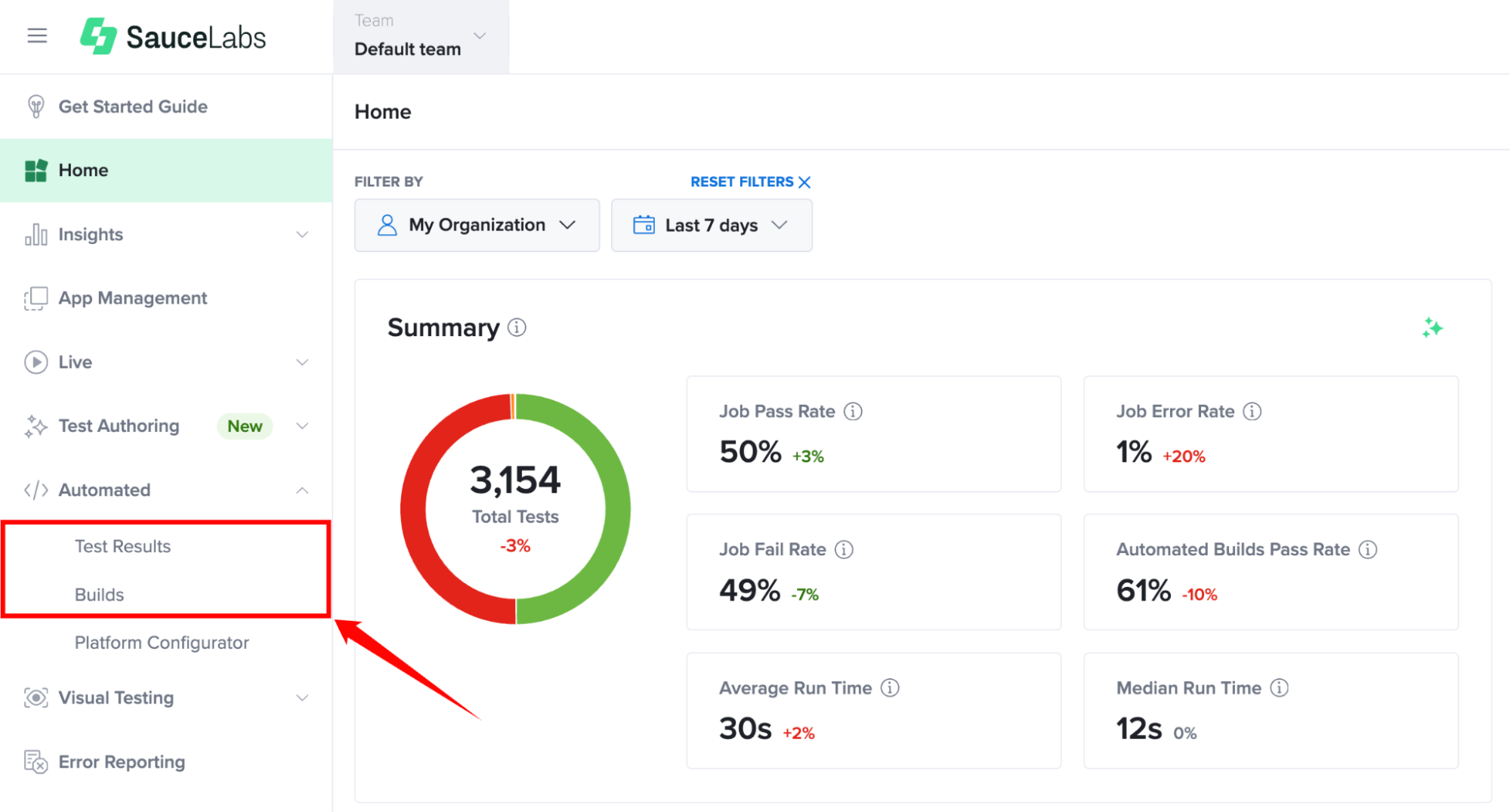
Step 1: Inside your Sauce Labs account, find Automated in the left-hand navigation menu, expand its available options, and select Test Results or Builds, depending on the information you want to view.
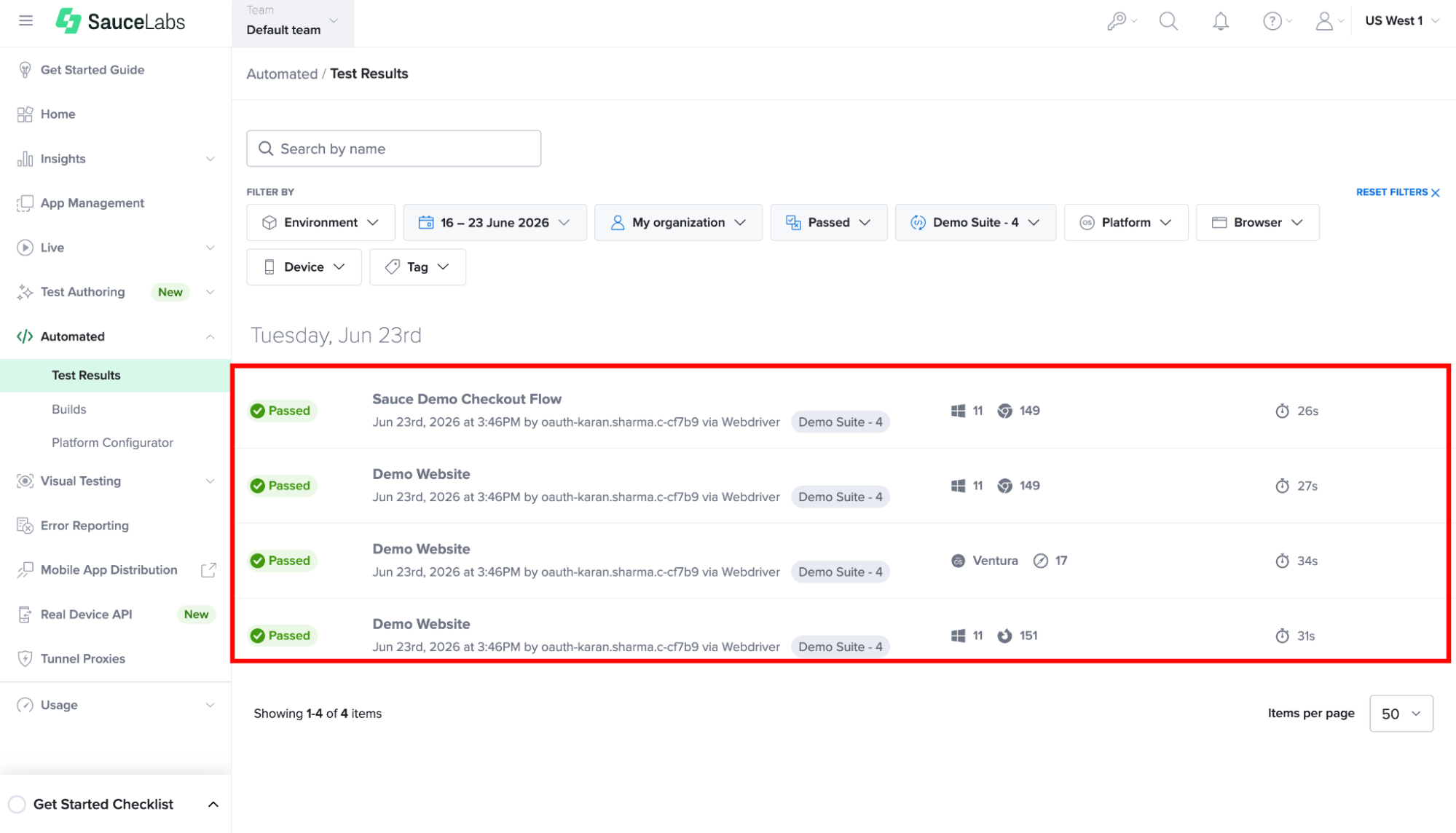
Step 2: You will find the list of all automated test sessions executed from Test Authoring. Click on your preferred test result from the list to open the Test Details page.
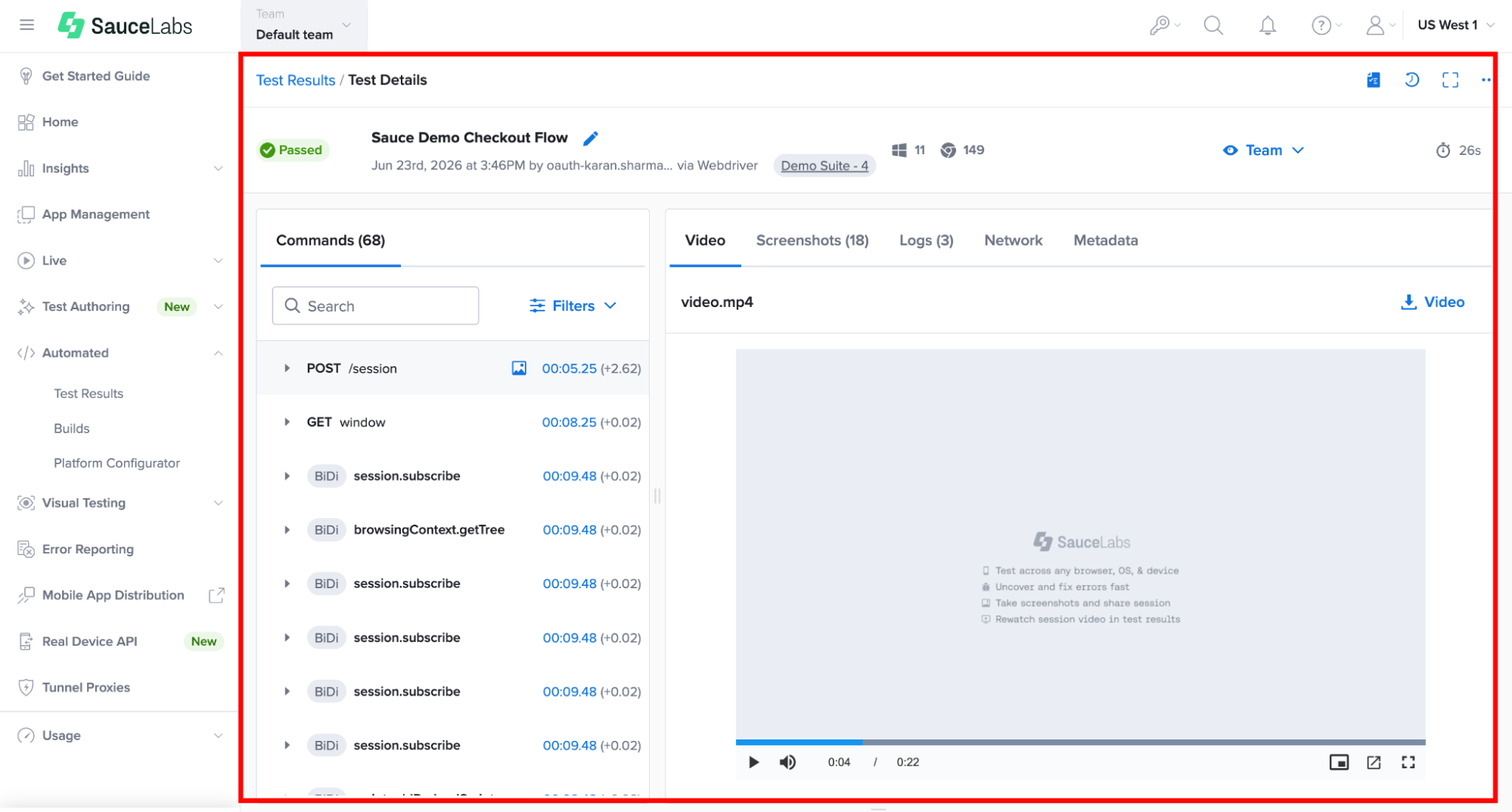
Step 3: The Test Details page provides execution artifacts such as videos, screenshots, logs, network data (when enabled), metadata, and automation commands to help you analyze test execution and troubleshoot failures.
For more information about viewing and using these artifacts, see View Test Results.
View the Source Authored Test Case
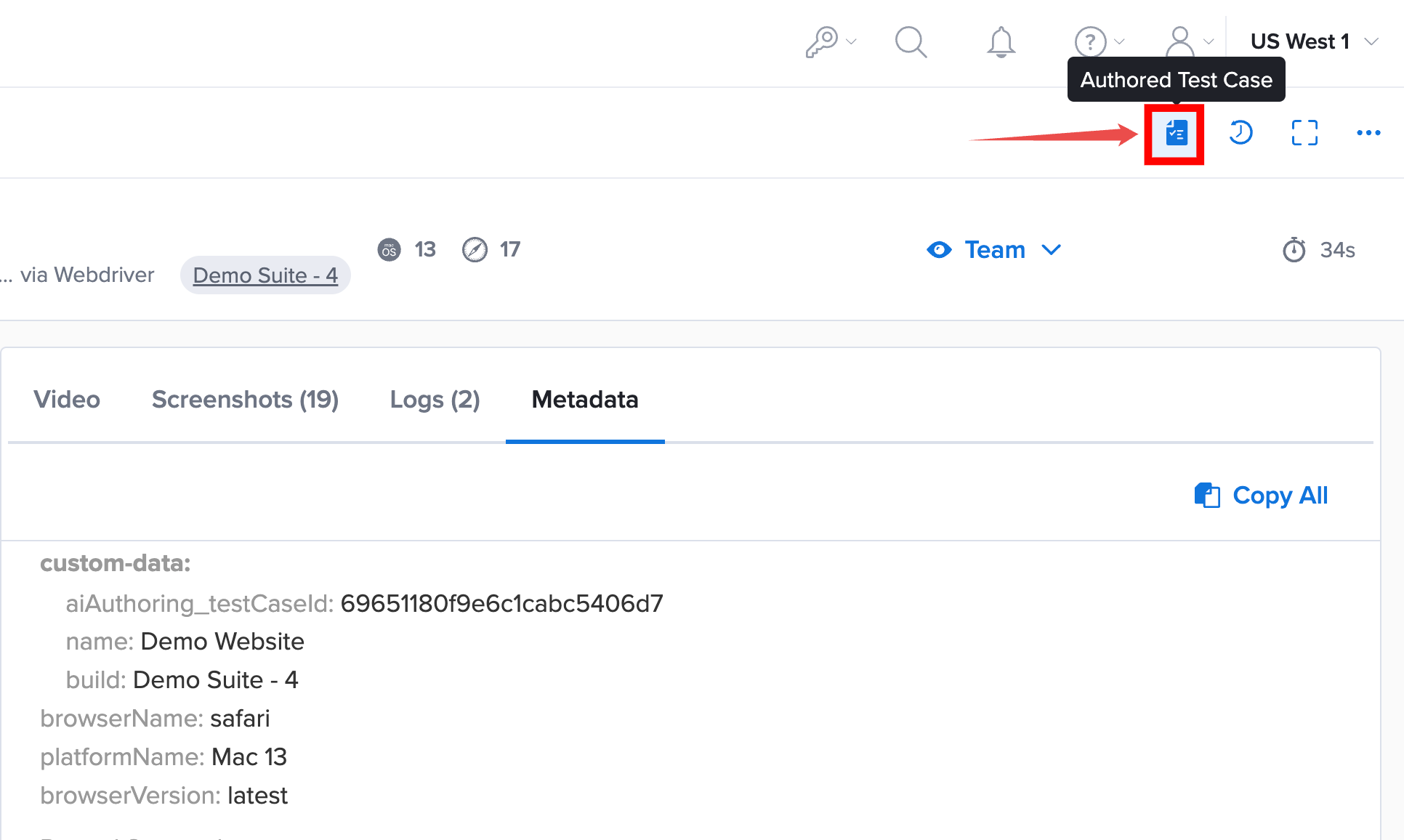
When viewing the details of a test session, click Authored Test Case in the top toolbar to open the original test case that initiated the test run. This helps you trace the test execution back to its source, review the test steps that were executed, understand the test flow, and update the test case if changes are needed.
Authored test runs also include the following metadata values in the Metadata tab:
- aiAuthoring_testCaseId – Unique identifier of the authored test case.
- name – Name of the authored test case.
- build – Name of the automated build associated with the test run.