Schedule Test Runs
Scheduling test runs allows you to automatically trigger your test suites at a predefined cadence without manually starting each test execution. This helps ensure continuous validation of your application, supports regular regression testing, and maintains consistent test coverage over time.
Create a Scheduled Test Run
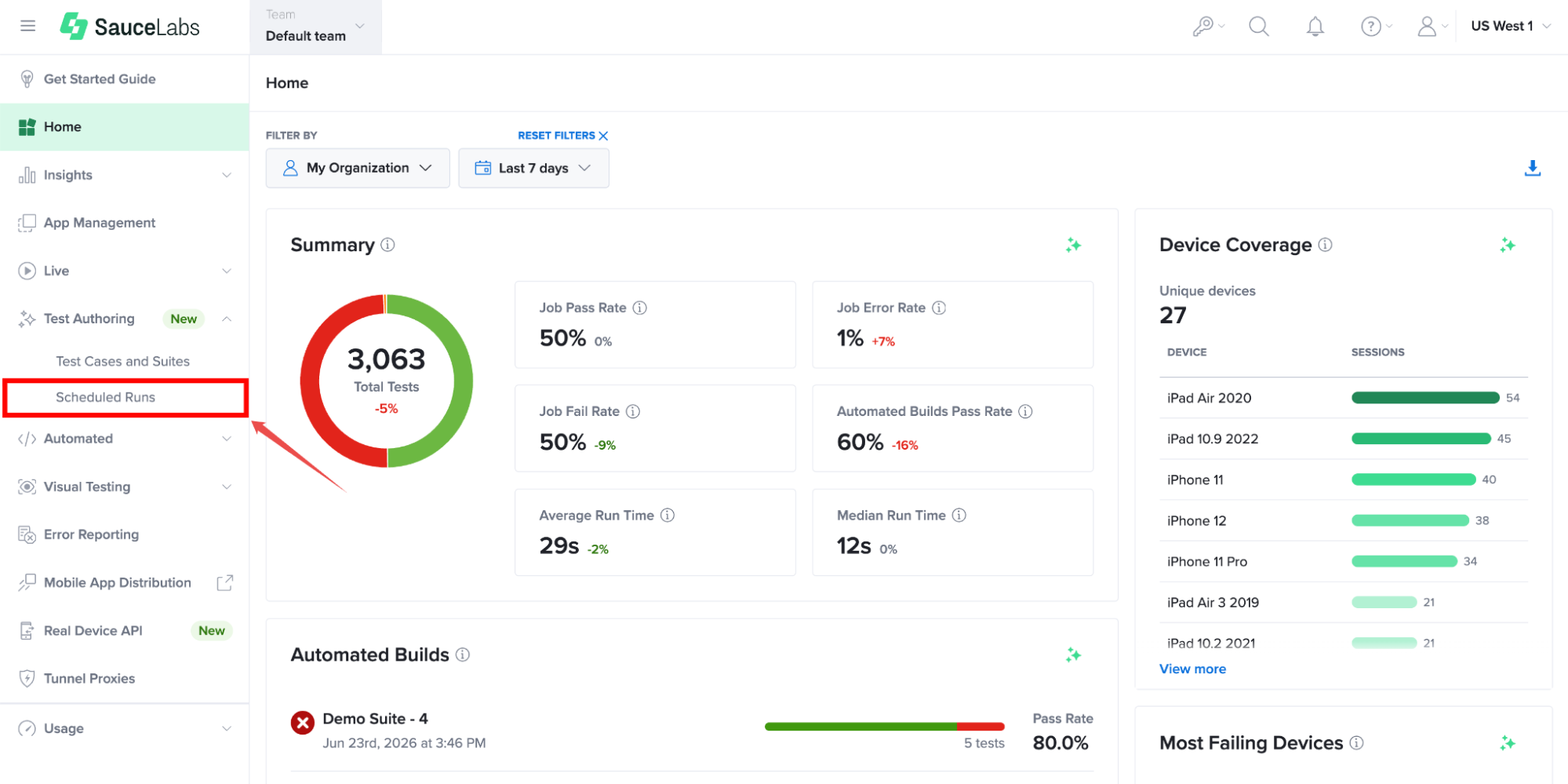
Step 1: Inside your Sauce Labs account, find Test Authoring from the left-hand navigation menu, expand its available options, and select Schedule Runs.
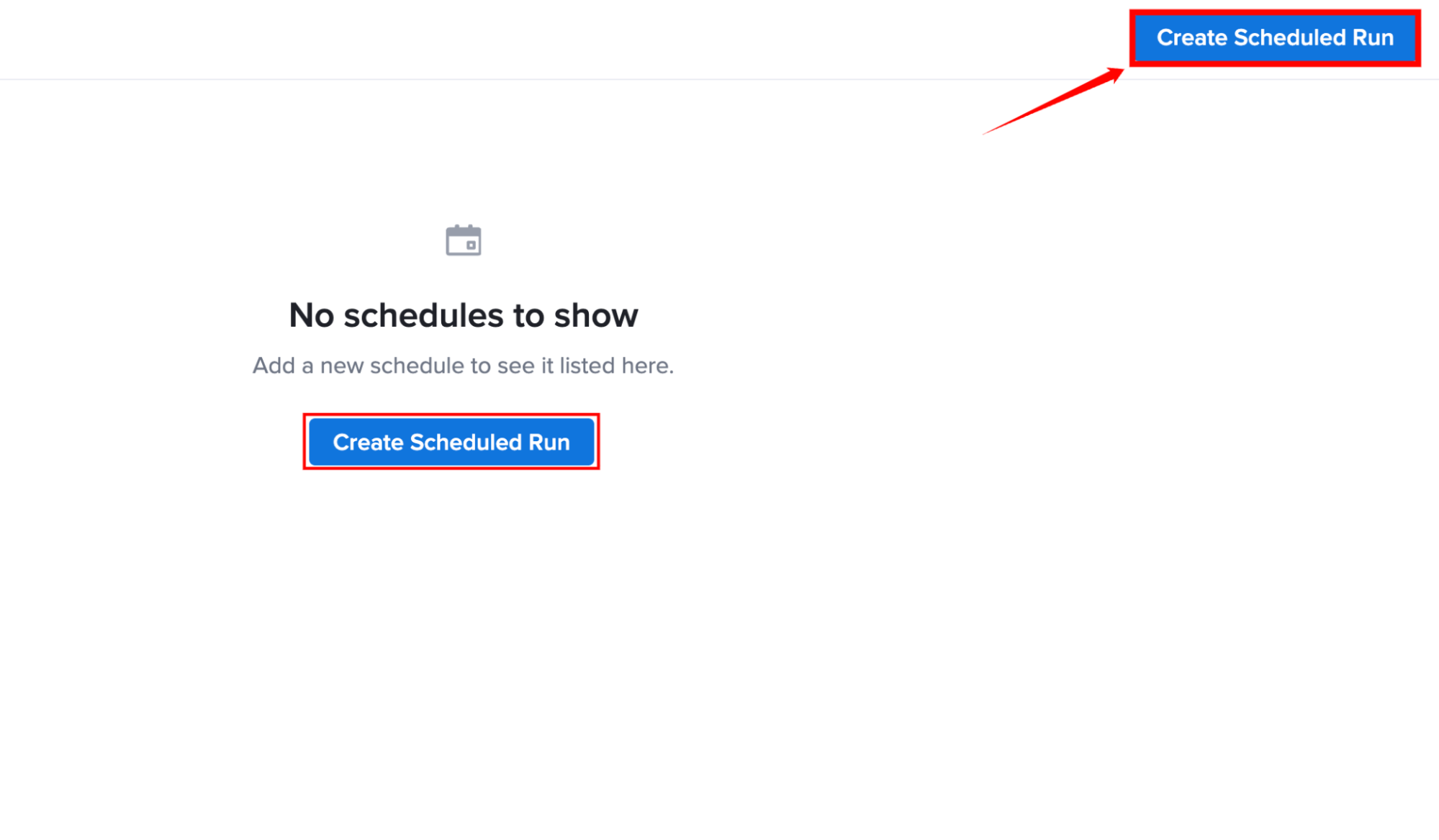
Step 2: The Schedules page displays all existing scheduled runs. If no schedules are available, click Create Scheduled Run from either the top-right corner or the empty state page to open the schedule configuration page.
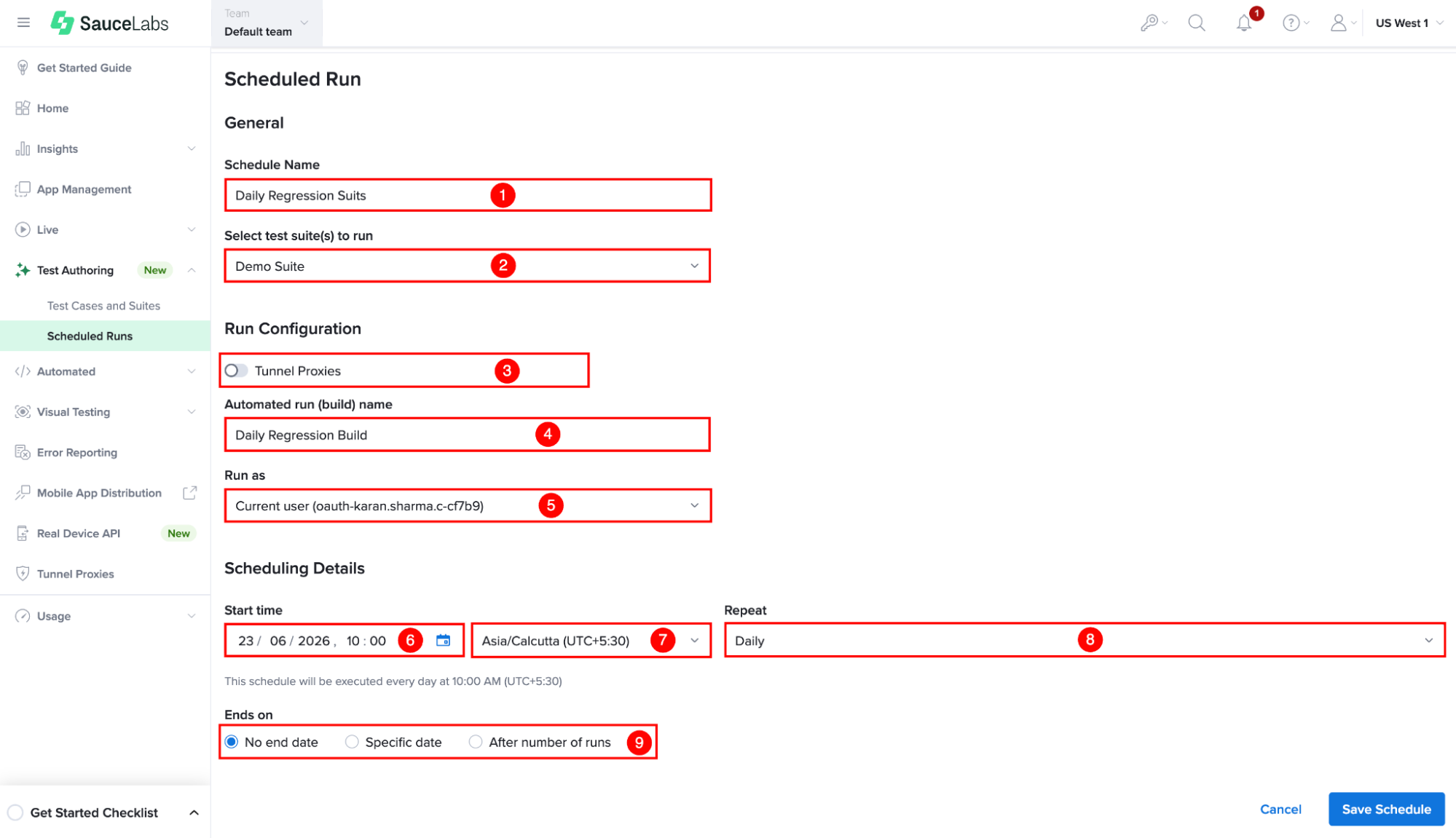
Step 3: Configure the schedule by providing the following required execution details:
| Ref. | Field | Description | Example Value |
|---|---|---|---|
| 1 | Schedule Name | A unique and descriptive name for the scheduled test execution. | Daily Regression Suite |
| 2 | Select test suite(s) to run | Select one or more existing test suites that should be triggered according to the schedule. | Login Test Suite, Checkout Flow Suite |
| 3 | Tunnel Proxies | Enable this option to override individual test case tunnel settings and use a specific tunnel for all tests in the schedule. | Enabled – johndoe-1029 |
| 4 | Automated run (build) name | Optional name used to identify the automated test run. If not provided, the schedule name is used by default. | Daily Regression Build |
| 5 | Run as | Select the user or service account that will own the test runs triggered by the schedule. | John Smith john.smith@example.com |
| 6 | Start time | Define the date and time when the schedule should begin running. | June 15, 2025, 10:00 AM |
| 7 | Time Zone | Specify the time zone used for the scheduled start time and recurring runs. | Asia/Kolkata (UTC+05:30) |
| 8 | Repeat | Choose how frequently the scheduled run should run. Available options include Hourly, Daily, Weekly, Weekdays, or Monthly. | Daily |
| 9 | Ends on | Define when the schedule should stop running. You can choose no end date, a specific end date, or stop after a certain number of executions. | No end date |
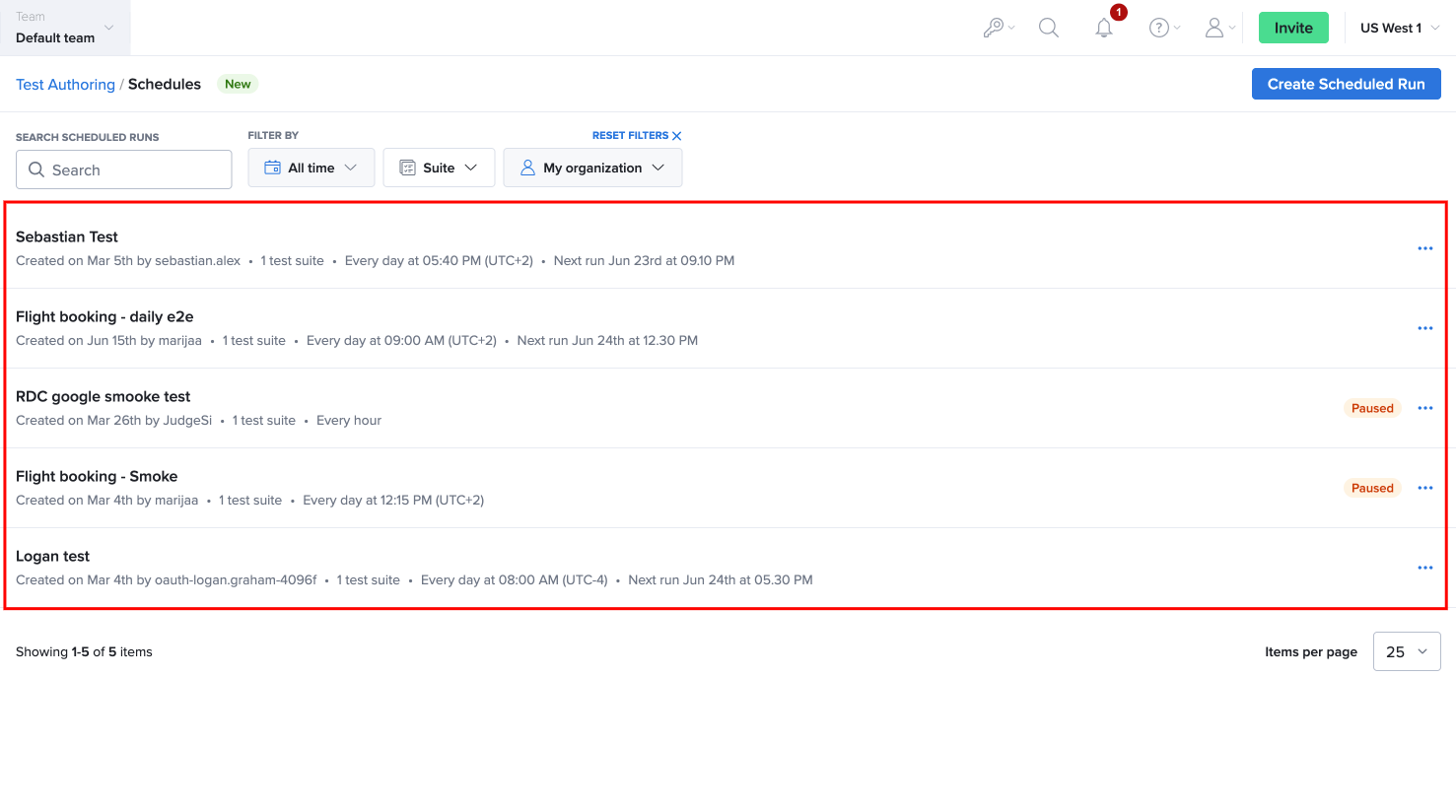
Step 4: Click Save Schedule to create the scheduled test run. After the schedule is created, it appears on the Scheduled Runs page, where you can monitor its status and manage it as needed.
Manage Scheduled Test Runs
The Scheduled Runs page provides a centralized view to monitor and manage all scheduled test executions. From the Scheduled Runs page, you can review schedule details, monitor the current status, modify existing schedules, or delete schedules that are no longer required.
Schedule Status
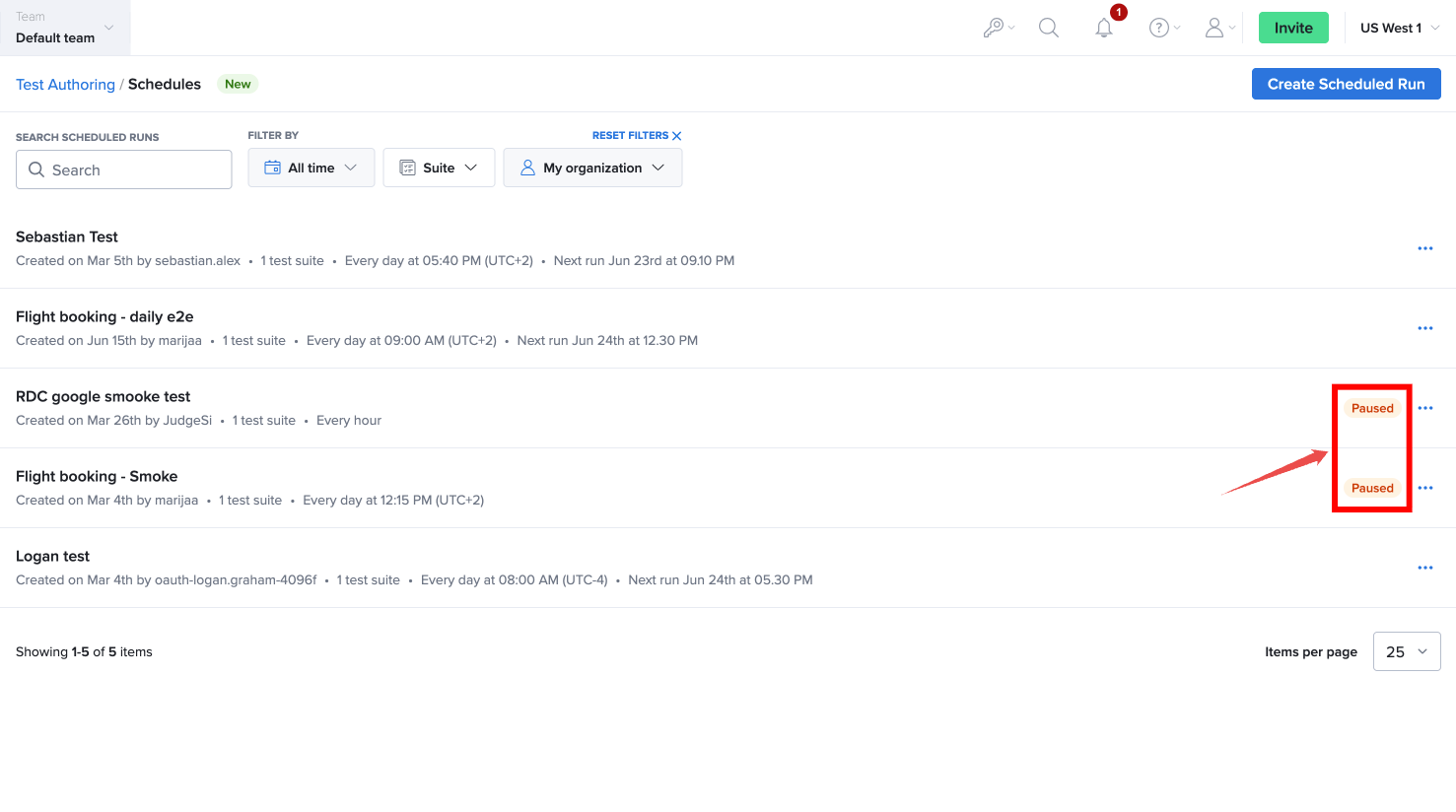
Each scheduled test run displays a status to indicate its current state:
| Status | Description |
|---|---|
| Active | The schedule is enabled and automatically runs the selected test suites based on the configured schedule. |
| Running | The scheduled test run is in progress. |
| Paused | The schedule is temporarily inactive. It can be paused manually, automatically due to an error, or when it reaches its configured end date or maximum number of scheduled runs. |
| Deleted | The schedule has been removed and will no longer trigger automated test executions. |
Edit a Scheduled Test Run
You can update an existing scheduled test run at any time to accommodate changing testing requirements. Editing a schedule allows you to adjust the execution timeframe, modify the run configuration, or update the test suites included in the scheduled execution.
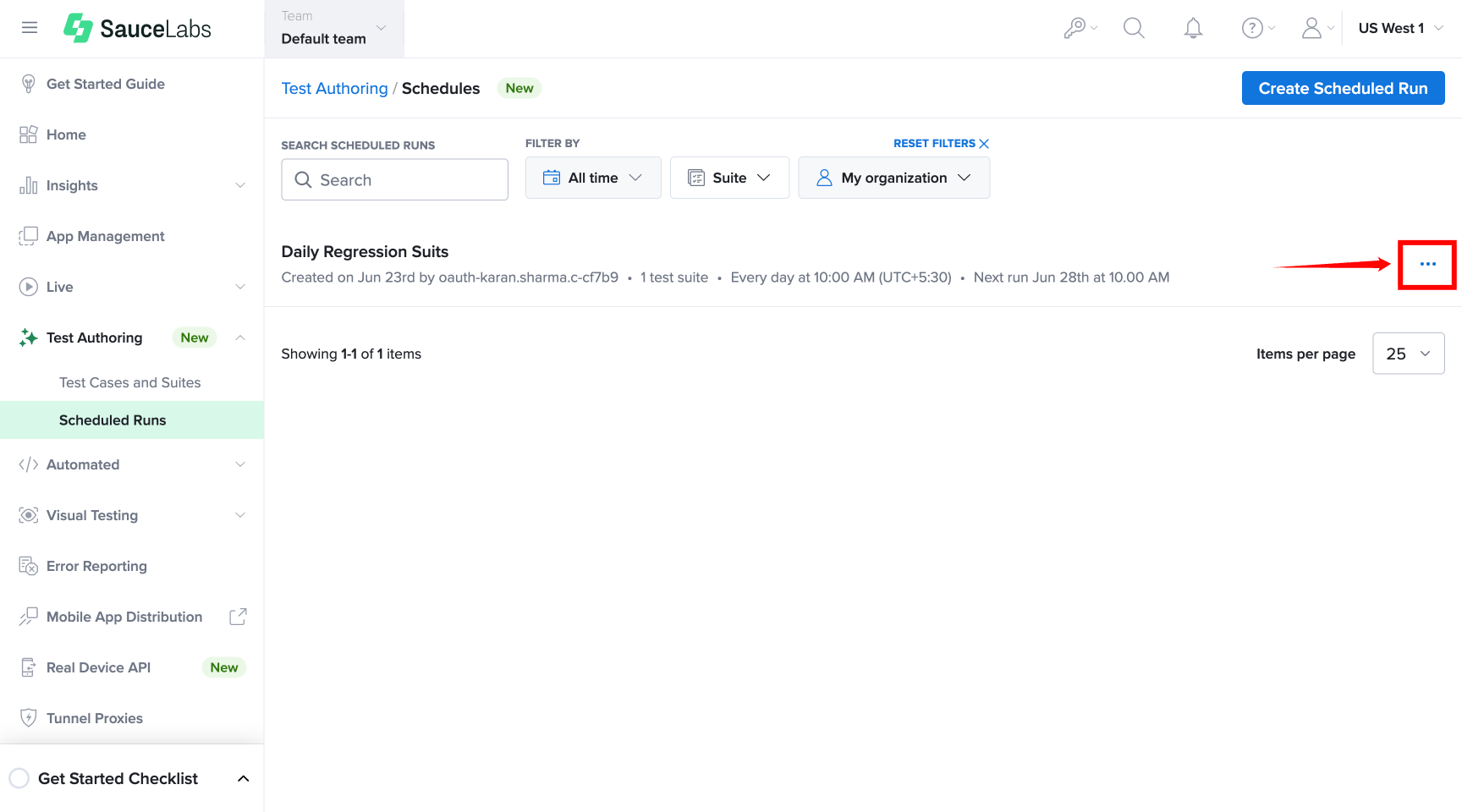
Step 1: Select the More Options (⋯) menu next to the required scheduled run and choose the appropriate action based on your requirements.
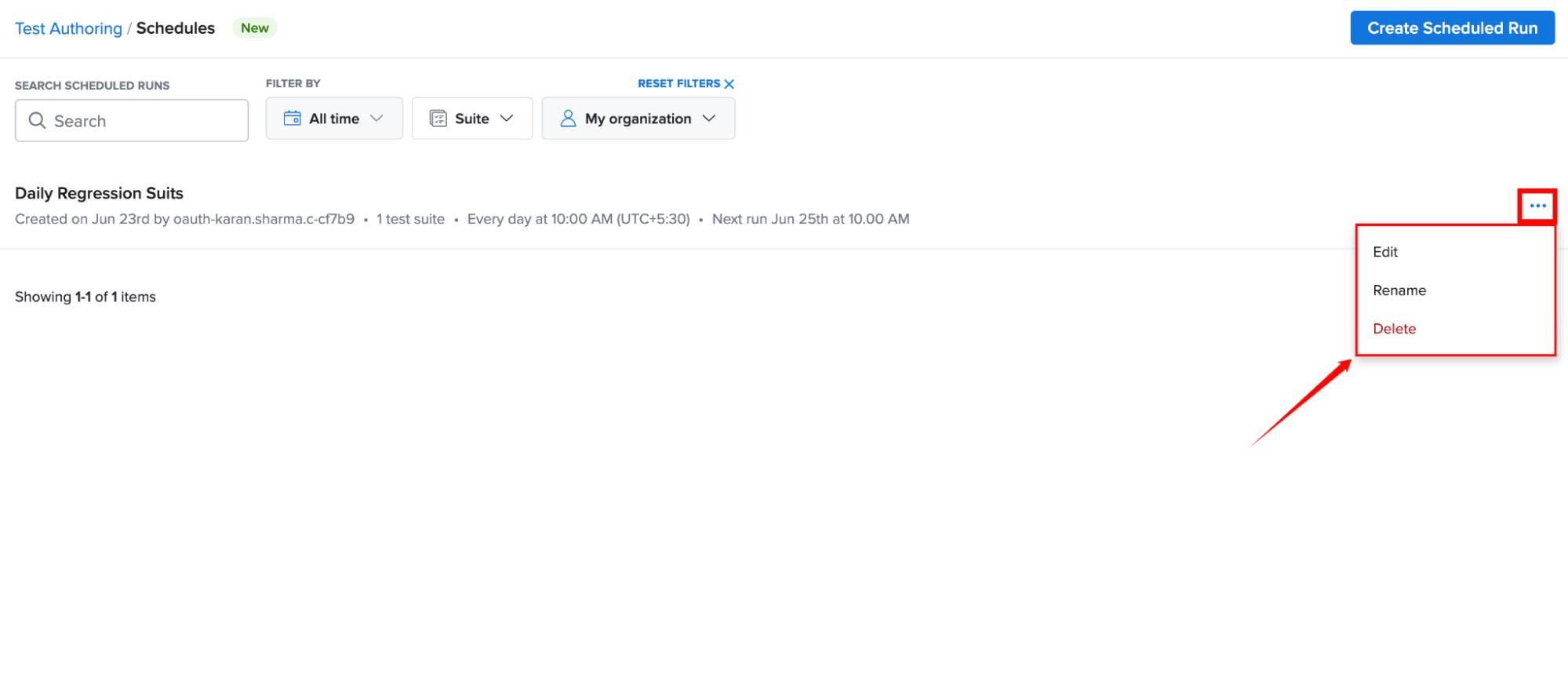
Step 2: Select the action that you want to perform. Depending on your requirements, you can:
-
Edit: Select Edit to modify the values for the settings that were configured when the test suite run was initially scheduled.
-
Rename: Select Rename to change the name of the scheduled run. Use a descriptive name that clearly identifies the purpose of the scheduled run.
-
Delete: Select Delete to permanently remove the scheduled run if it is no longer required. After the scheduled run is deleted, no future test executions will be triggered based on that schedule.
After the changes are saved, the updated configuration is automatically applied to all future scheduled test runs.
Schedule Notifications and Errors
If a scheduled run cannot be executed, Sauce Labs displays an error notification in the Scheduled Runs list to help identify the issue.
For example, a schedule may fail to run if the configured Job Owner has been deactivated or no longer has the required access. Review the notification, resolve the issue, and update the schedule configuration if necessary.