Run Test Suite
After creating a test suite, you can run it to run all the test cases included in the suite as part of a single test run. During test execution, Sauce Labs will automatically run each test case using the browser, platform, device, and other configurations defined for the individual test cases.
This allows you to validate multiple workflows and application features in a single execution without having to run each test case separately. You can save time, simplify test execution, and ensure consistent test coverage across different environments.
Test suites inherit the execution configurations from the individual test cases included in the suite.
Run Test Suite
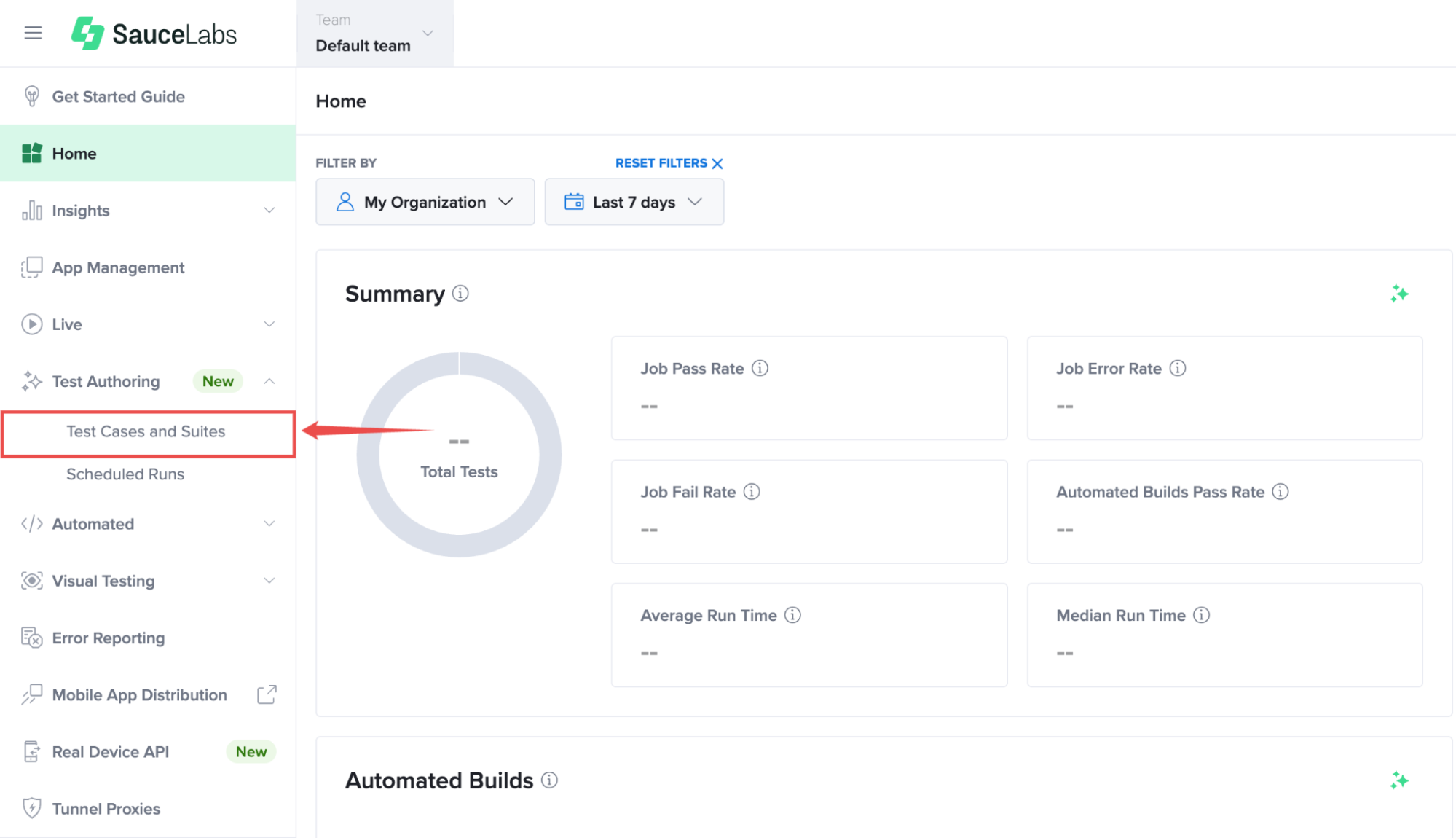
Step 1: Inside your Sauce Labs account, find Test Authoring from the left-hand navigation menu, expand its available options, and select Test Cases and Suites.
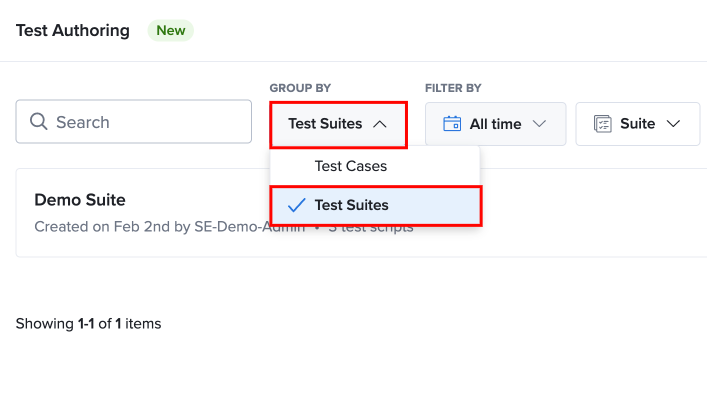
Step 2: From the Group By drop down list, select Test Suites to display your available test suites.
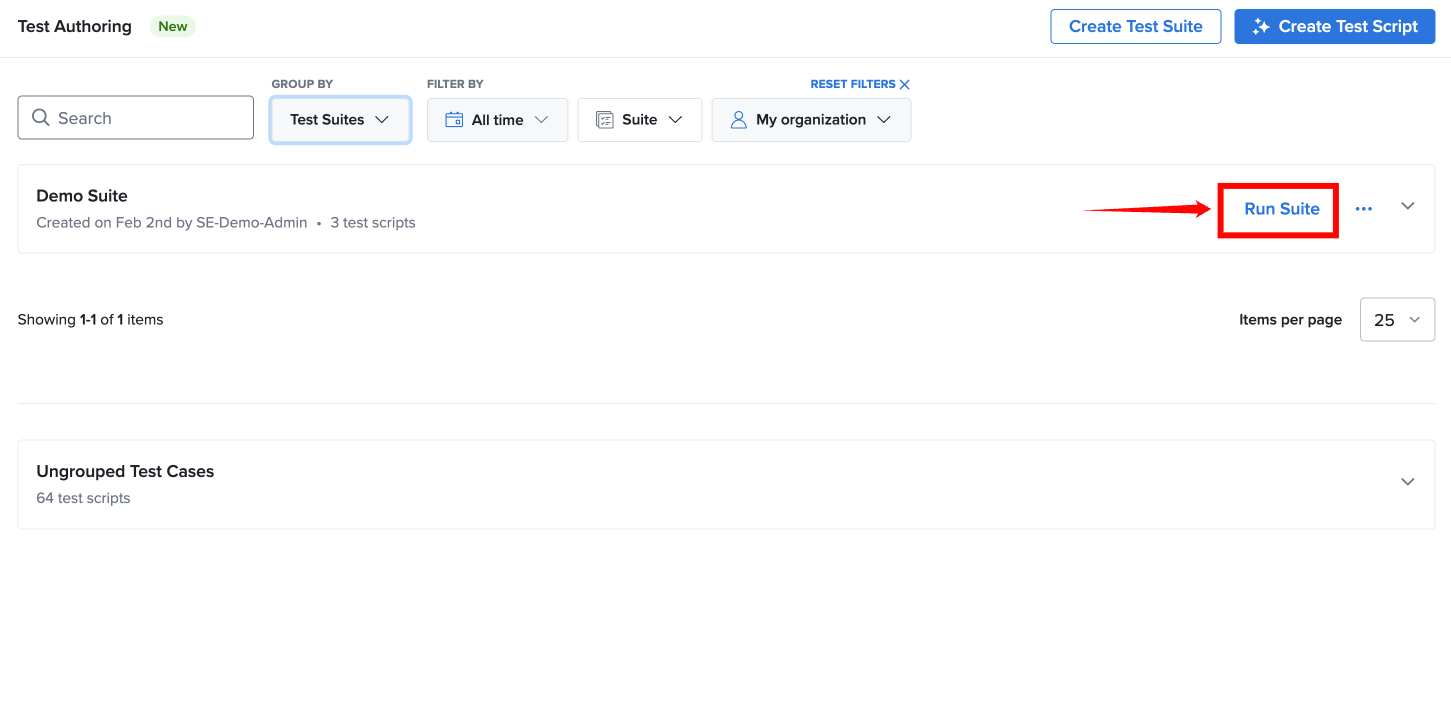
Step 3: Locate the test suite you want to trigger and click Run Suite next to the selected suite.
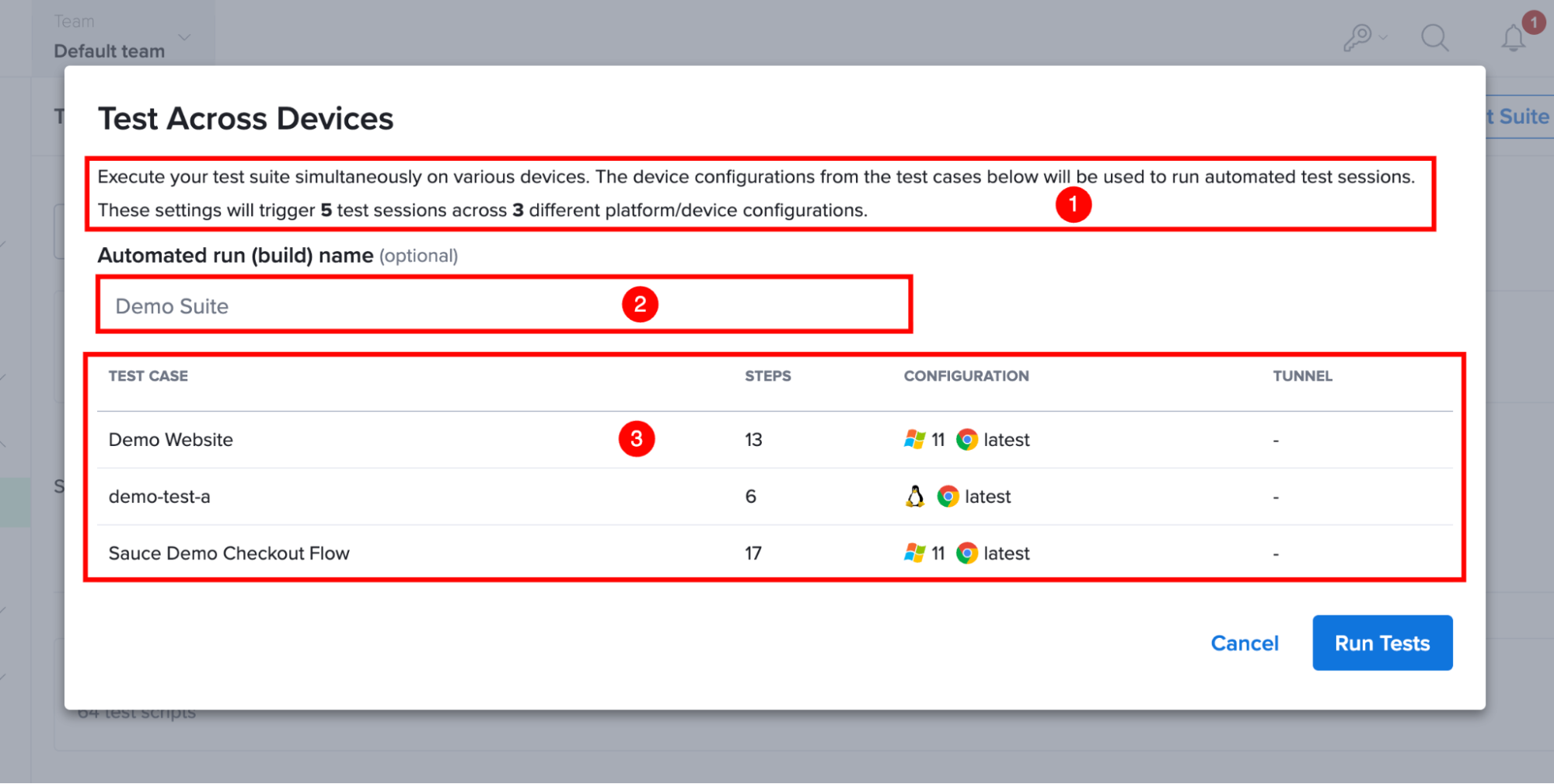
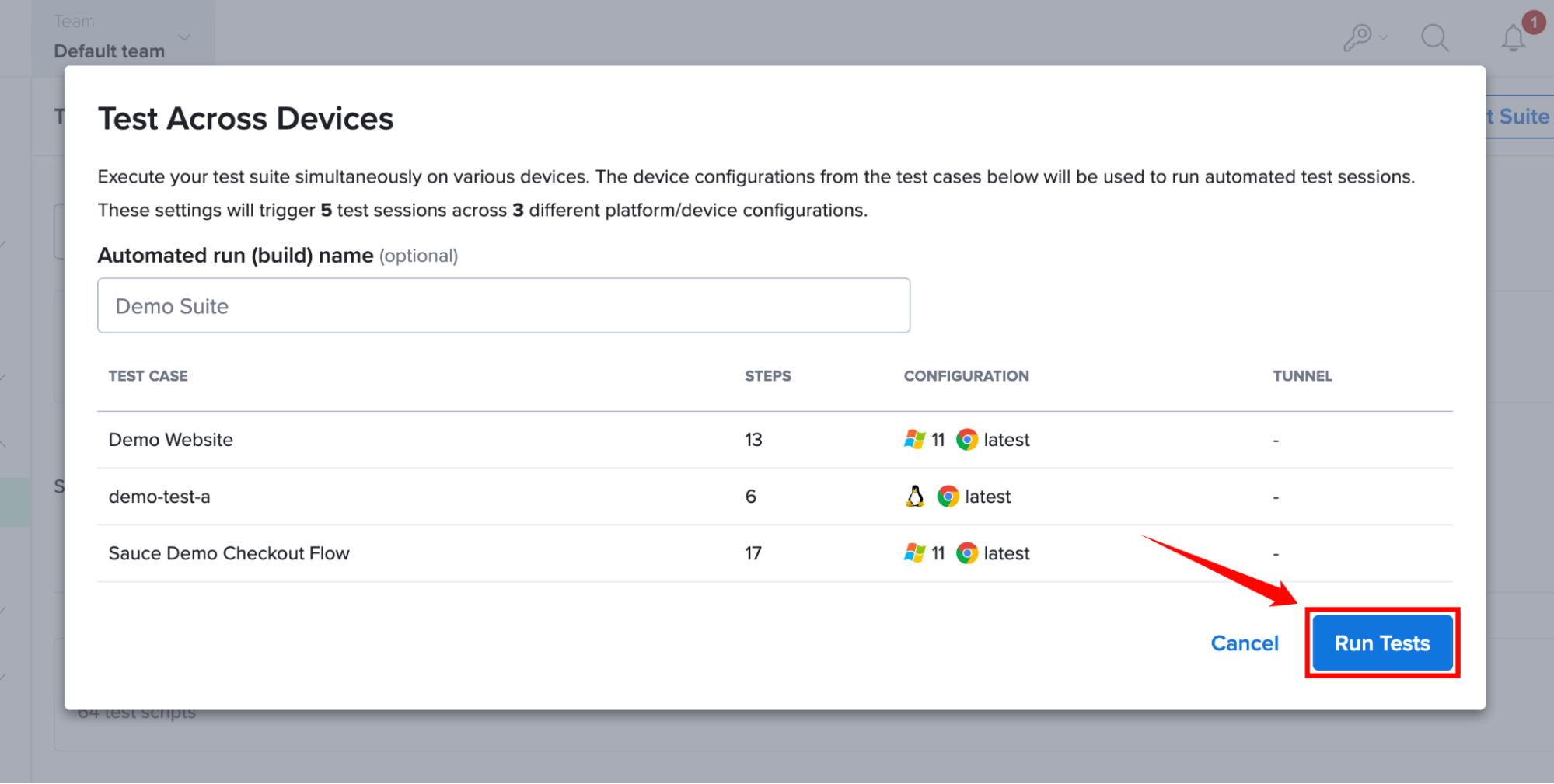
Step 4: Review the Test Across Devices execution window before starting the test execution.
| Ref | Information | Description |
|---|---|---|
| 1 | Test Sessions Summary | Displays the total number of automated test sessions that will be triggered based on the configurations defined in the included test cases. |
| 2 | Automated Run (Build) Name (Optional) | Specify a custom name for the test execution. If no value is provided, the test suite name is used as the automated build name. |
| 3 | Test Cases | Lists all test cases included in the suite along with their number of steps, platform/browser configuration, and associated tunnel information. |
Step 5: Click on the Run Tests to start executing all test cases included in the selected test suite.
After the execution begins, Sauce Labs creates automated test sessions based on the configurations associated with each test case in the suite. Multiple test sessions can run simultaneously depending on the number of configured environments.
View Test Suite Results
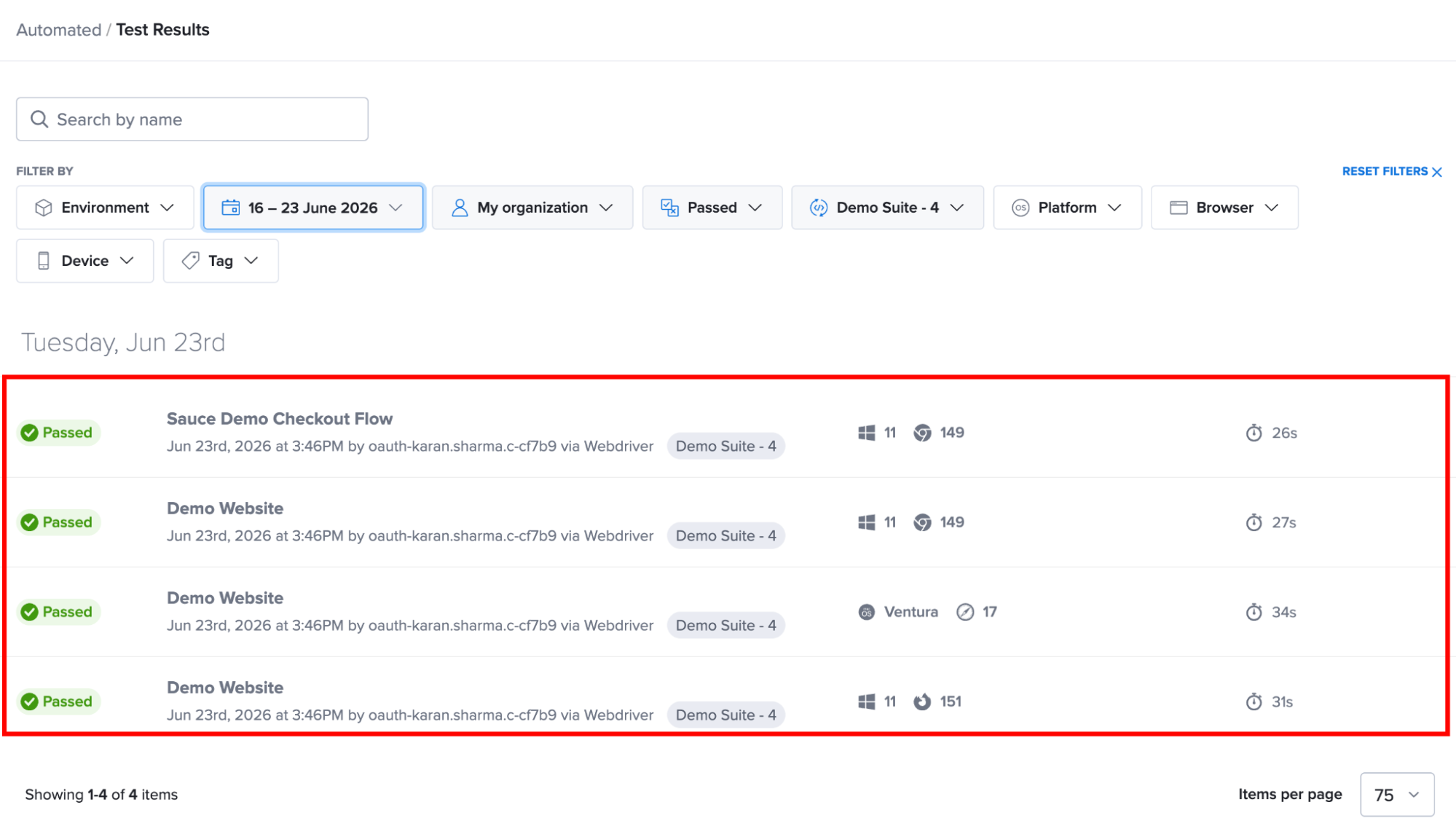
After the run is complete, navigate to Automated from the left-hand navigation menu, expand its available options, and select Test Results.
The Test Results page provides details such as:
- Overall execution status (Passed or Failed)
- Test case execution results in the suite
- Execution duration and environment information
- Available debugging artifacts, such as logs, screenshots, and videos when applicable
If you do not want to run the test suite immediately, you can schedule the execution for a later date and time. For more information, see Schedule Your Test Runs