Mobilewright on Sauce Labs
Community Supported Real Devices Only Enterprise Plans only
Mobilewright is an open source mobile testing framework with a
Playwright-style API: locators, auto-waiting assertions, and a test runner built on Playwright Test. The Sauce Labs
driver for Mobilewright, @saucelabs/mobilewright-driver,
runs your Mobilewright tests on Sauce Labs Android and iOS real devices. You add the driver to your config; your tests
don't change. This guide explains how to set up the driver and use it with your Sauce Labs tests.
Mobilewright is built and maintained by its open source project, not by Sauce Labs. Sauce Labs maintains the driver in
the mobilewright-saucelabs repository and supports the cloud side:
devices, sessions, and test artifacts. Report Mobilewright issues to the
Mobilewright issue tracker, and driver issues to the
driver issue tracker.
Sauce Labs validated this guide with @saucelabs/mobilewright-driver 0.0.2 and Mobilewright 0.0.67 in October 2026.
The driver requires exactly the Mobilewright version it was built for.
The driver uses the Real Device Access API, which is available on Enterprise plans only. To enable it for your organization, contact your Customer Success Manager or request a demo.
How It Works with Sauce Labs
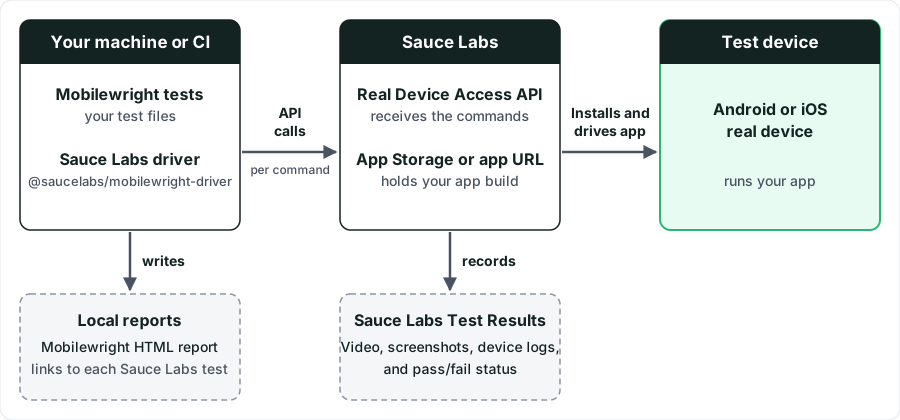
- Your Mobilewright tests run on your machine or CI runner, as they do with a local device.
- For each test worker, the driver opens a session on a Sauce Labs real device through the Real Device Access API, and installs your app from a URL, App Storage, or a local file.
- The driver turns each Mobilewright command (read the screen, tap, type, or launch an app) into Access API calls on that device.
- Each Mobilewright test shows up on the Sauce Labs Test Results page with its name, status, video, screenshots, and device logs.
- When the run ends, the driver releases the devices.
There is no Appium or WebDriver session for native tests. The driver only starts the Appium server that Sauce Labs hosts next to the device when a test uses a web view.
Supported Targets
| Sauce Labs target | Result |
|---|---|
| Android real device | ✔️ Android 13 or later |
| iOS real device | ✔️ |
| Public devices | ✔️ see limits |
| Private devices | ✔️ |
| Android Emulator | ❌ not supported |
| iOS Simulator | ❌ not supported |
| Desktop browsers | ❌ not supported |
Limitations
- Real devices only. The driver uses the Real Device Access API, which has no Emulators or Simulators.
- Android 13 or later. The driver's
fill()needs it, and fails with a clear message on older devices.
What You'll Need
Before you begin, make sure you have:
- A Sauce Labs Enterprise account with access to the Real Device Access API (Log in).
- Your Sauce Labs Username and Access Key.
- Node.js 22.12 or later.
- A Mobilewright project, or one of the example projects.
- Your app builds: an
.apkfor Android and an.ipafor iOS. To try the steps without your own app, use the Sauce Labs My Demo App builds, as in the examples below.
Authentication
The driver reads your Sauce Labs username and access key from the SAUCE_USERNAME and SAUCE_ACCESS_KEY environment
variables. You find them under User Settings. Store them in your CI
system's secret store, so you never write them into tests or config files.
You can also pass username and accessKey to sauceLabsDriver(), but environment variables are safer.
Set Up the Driver
Step 1: Install the Driver
In your Mobilewright project, install the driver next to mobilewright and @mobilewright/test:
npm install --save-dev mobilewright@0.0.67 @mobilewright/test@0.0.67 @saucelabs/mobilewright-driver
Step 2: Link Your Sauce Labs Account
Check whether your Sauce Labs credentials are already set as environment variables:
echo $SAUCE_USERNAME
echo $SAUCE_ACCESS_KEY
If nothing is returned, set them:
export SAUCE_USERNAME="your Sauce username"
export SAUCE_ACCESS_KEY="your Sauce access key"
Step 3: Set the Driver in Your Config
Set driver in mobilewright.config.ts. This example runs the Sauce Labs My Demo App on a Pixel and an iPhone:
import { defineConfig } from 'mobilewright';
import { sauceLabsDriver } from '@saucelabs/mobilewright-driver';

export default defineConfig({
  testDir: './tests',
  use: { actionTimeout: 30_000 },
  expect: { timeout: 30_000 },
  driver: sauceLabsDriver({ region: 'us-west-1', build: 'my-first-build' }), // us-east-4, eu-central-1, asia-south-2
  projects: [
    {
      name: 'android',
      use: {
        platform: 'android',
        deviceName: /Google_Pixel(?!.*Fold)/, // no foldables: apps can open on the hidden screen
        osVersion: '>=13',
        bundleId: 'com.saucelabs.mydemoapp.android',
        installApps: 'https://github.com/saucelabs/my-demo-app-android/releases/download/2.3.0/mda-2.3.0-27.apk',
      },
    },
    {
      name: 'ios',
      use: {
        platform: 'ios',
        deviceName: /iPhone/,
        osVersion: '>=16.6',
        bundleId: 'com.saucelabs.mydemo.app.ios',
        installApps: 'https://github.com/saucelabs/my-demo-app-ios/releases/download/2.3.0/SauceLabs-Demo-App.ipa',
      },
    },
  ],
});
deviceNameis a regular expression matched against the device name or ID.osVersiontakes a version range, such as'>=13'.installAppstakes anhttps://URL (Sauce Labs downloads it), a file in App Storage (storage:<id>orstorage:filename=<name>), or a local.apk,.ipa, or.zipfile. The driver uploads a local file once and reuses it in later runs.- Mobilewright's default timeouts are 5 seconds, which is meant for local devices. Use 30 seconds for
actionTimeoutandexpect, as in the example.
To run the same tests on a local device when no Sauce Labs credentials are set, add the driver only when they are:
const config: MobilewrightConfig = { /* ... */ };
if (process.env.SAUCE_USERNAME) config.driver = sauceLabsDriver();
export default defineConfig(config);
Driver Options
All options are optional.
| Option | Default | Description |
|---|---|---|
username, accessKey | environment variables | Sauce Labs credentials. |
region | us-west-1 | Data center: us-west-1, us-east-4, eu-central-1, or asia-south-2. |
build, tags | none | Build name and tags shown on the Test Results page. |
reportTests | true | Report each test to the Test Results page. |
artifacts | video, screenshots, device logs | What Sauce Labs records per test: { video, screenshots, deviceLogs, networkCapture }. |
allocationTimeout | 300000 | How long to wait for a device, in milliseconds. |
sessionDuration | Sauce Labs default | Maximum session length, for example PT1H (limits). |
sauceConnect | false | Start a Sauce Connect tunnel for the run. |
sauceConnectOpts | none | Tunnel options: any sc run flag, camelCased (for example tunnelDomains). |
tunnelName, tunnelOwner | none | Use a tunnel that is already running, or one shared with you. |
appiumVersion | appium3-2026-07 | Sauce Labs hosted Appium version used for web views. |
iosWdaStorageRef, iosWdaBundleId | none | A custom WebDriverAgent (iOS, private devices only). |
Verify the Integration
-
Add this test to
tests/catalog.test.ts:tests/catalog.test.tsimport { expect, test } from '@mobilewright/test';test('the catalog lists the backpack', async ({ screen }) => {await expect(screen.getByText(/Sauce Labs Backpack/).first()).toBeVisible();}); -
Run it on an Android device:
npx mobilewright test --project android -
Open Real Devices and filter by the build
my-first-build. -
Confirm that a test named
the catalog lists the backpackappears with a Passed status and a video of the test.
Use the Integration
After you set up the integration, you write and run Mobilewright tests as you would for a local device.
Run Your Tests
Run each platform in its own command:
npx mobilewright test --project android
npx mobilewright test --project ios
Running Tests in Parallel
Each Mobilewright worker uses one device. Set workers in your config to your account's
concurrency for real devices. When all your concurrency is in
use, or every matching device is busy, the driver waits for a device for up to allocationTimeout.
Test a Site on Your Network with Sauce Connect
Use Sauce Connect when your app talks to a server on your machine or on a private
network. With sauceConnect: true, the driver downloads Sauce Connect, starts the tunnel before the first test, and
stops it at the end:
driver: sauceLabsDriver({
  sauceConnect: true,
  sauceConnectOpts: { tunnelDomains: ['.*\\.internal'] }, // optional: only these hosts use the tunnel
}),
- If you don't have private devices and want to use public devices, ask your organization admin to turn on Enable Sauce Connect Proxy/VPN for Public Cloud Devices in the organization security settings.
- Devices don't send
localhostor127.0.0.1through the tunnel. Use another name for your server, for examplelocaltest.mewithproxyLocalhost: 'allow'(localhost proxying). - Sauce Connect re-signs HTTPS traffic. Chrome and Safari
accept it, but an Android app's web view may not. List those hosts in
tlsPassthroughDomains. - Safari on iOS 18 and later tries HTTPS first, even for
http://URLs. For a plain HTTP server, list its host intlsPassthroughDomains.
Public and Private Devices
Both work. Public devices limit sessions to 1 hour, don't allow a custom WebDriverAgent, and may limit Android shell
commands to an allowlist.
The driver needs uiautomator dump. If your account blocks it, use a private device or ask Sauce Labs to allow it. See
Public and Private Devices.
View Your Results
Mobilewright prints each test as it runs and writes its usual reports locally. Each test is also available on the
Real Devices Test Results page. Filter by the build value you set
in Step 3.
How Tests Appear in Sauce Labs
- Name: the test's title path, as Mobilewright shows it. A retry shows up as
… (retry 1). - Status: passed or failed, set when the test ends. A skipped test has no result. To skip a test without leaving an
empty test on Sauce Labs, skip it before it starts:
test.skip(({ platform }) => platform === 'ios', 'reason'). - Artifacts: video, screenshots, and device logs by default. Change them with the
artifactsoption. - Reports: each test in Playwright's HTML report links to its Sauce Labs test, where the video is.
Examples
The driver repository has two complete projects you can copy. Both run in the repository's CI:
- Sauce Labs demo app: installs an app from a URL, tests both platforms, and opens a site on your machine through Sauce Connect.
- Mobilewright Playground app: text fields, controls, alerts and permission prompts, and web views.
Troubleshooting
See what the driver does
DEBUG=mw:mobilewright-driver* to print the driver's logs. Set SAUCE_LIVE_VIEW=1 to print a link to watch each
device live.Tests for one platform wait forever
--project android and
--project ios.Failed to reach Sauce Connect tunnel
tunnelName isn't running, or isn't shared with you. If it's shared, set tunnelOwner.The application at path … cannot be installed
osVersion, for example '>=18.6'.Locators or assertions time out
actionTimeout and expect.timeout to
30 seconds.A web view on iOS can't be reached
WKWebView.isInspectable = true.More Information
- Explore the Sauce Labs driver on GitHub and
@saucelabs/mobilewright-driveron npm. - Read the Mobilewright documentation for locators, assertions, and the test runner.
- See the Real Device Access API guide for how sessions on real devices work.
- Review Community Frameworks for the support model that applies to this guide.